Load your own data
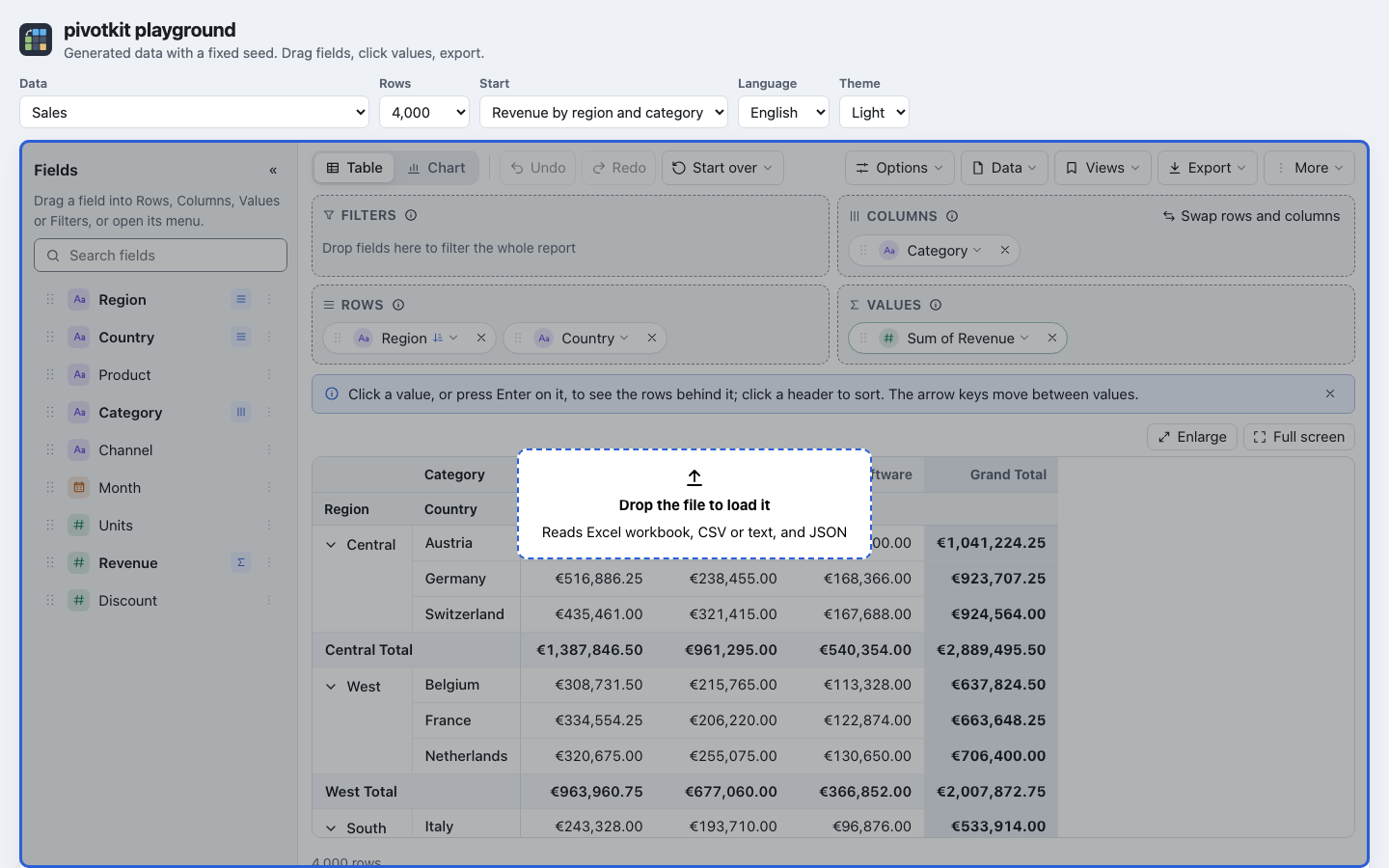
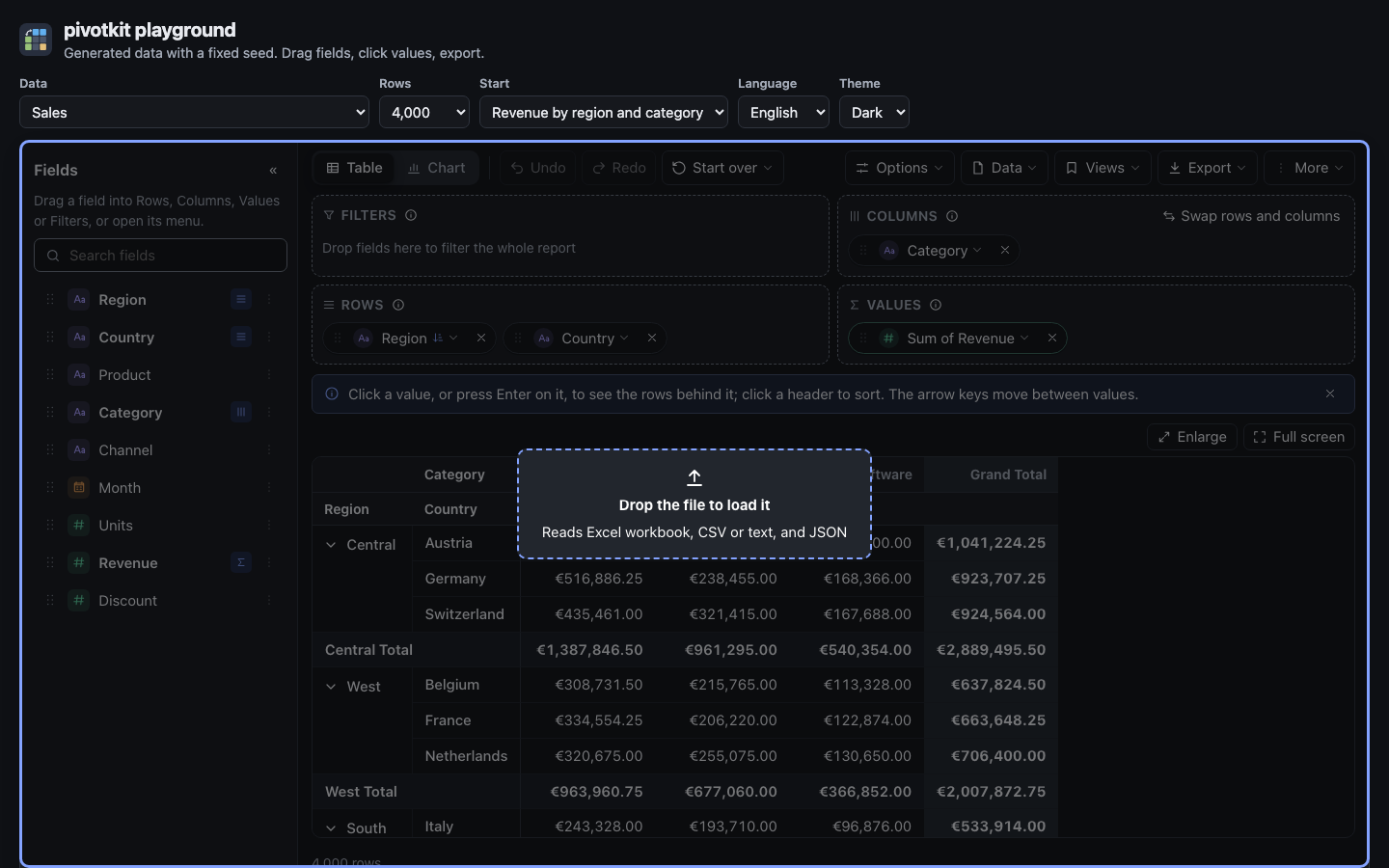
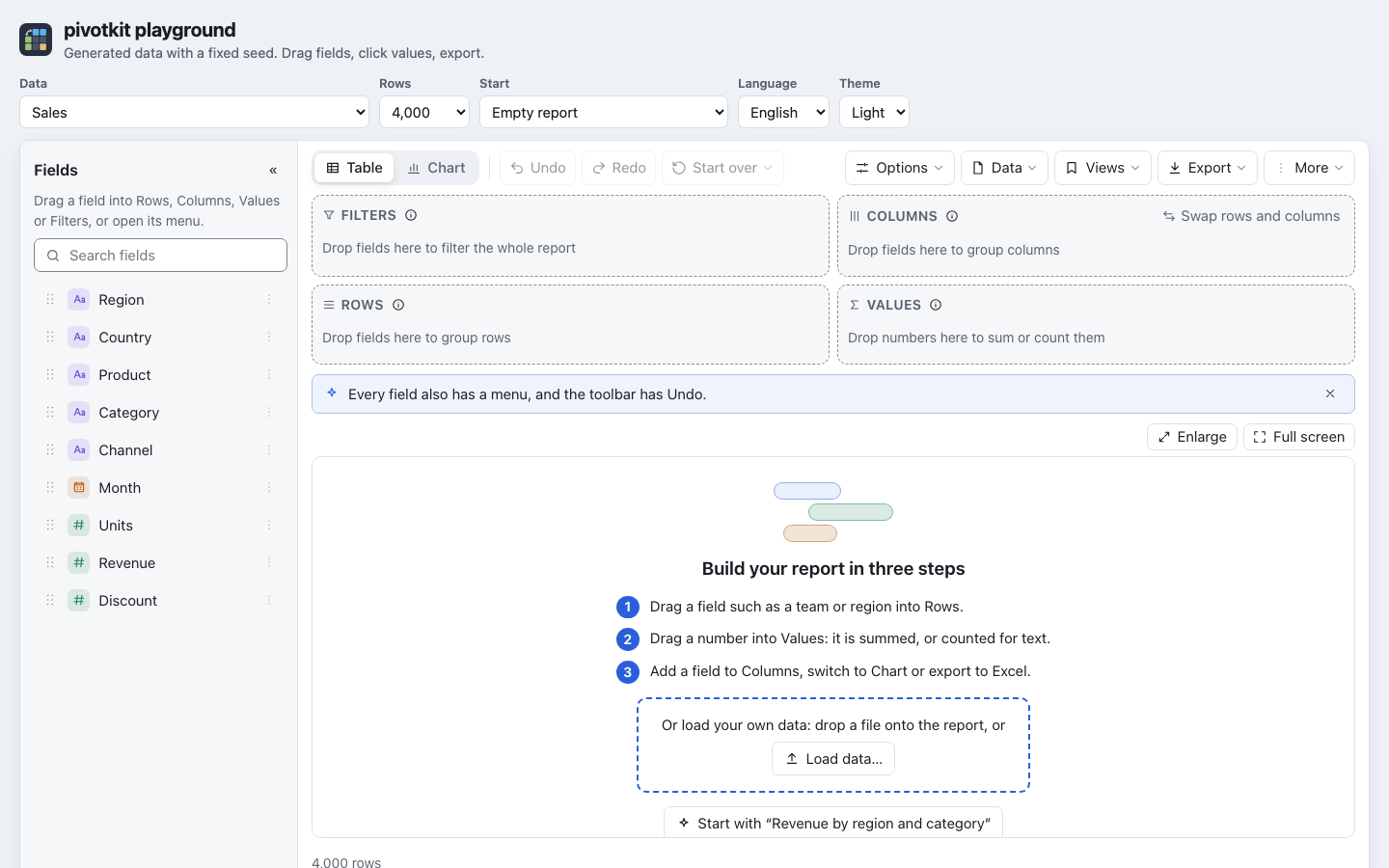
Where the application allows it, the report reads a file of yours: drop it onto the report, or pick it under Data, Load data…. A preview shows what was read before the data is replaced. The file stays on your computer: it is read in your browser, nothing is uploaded, and after a reload the application's own data is back.
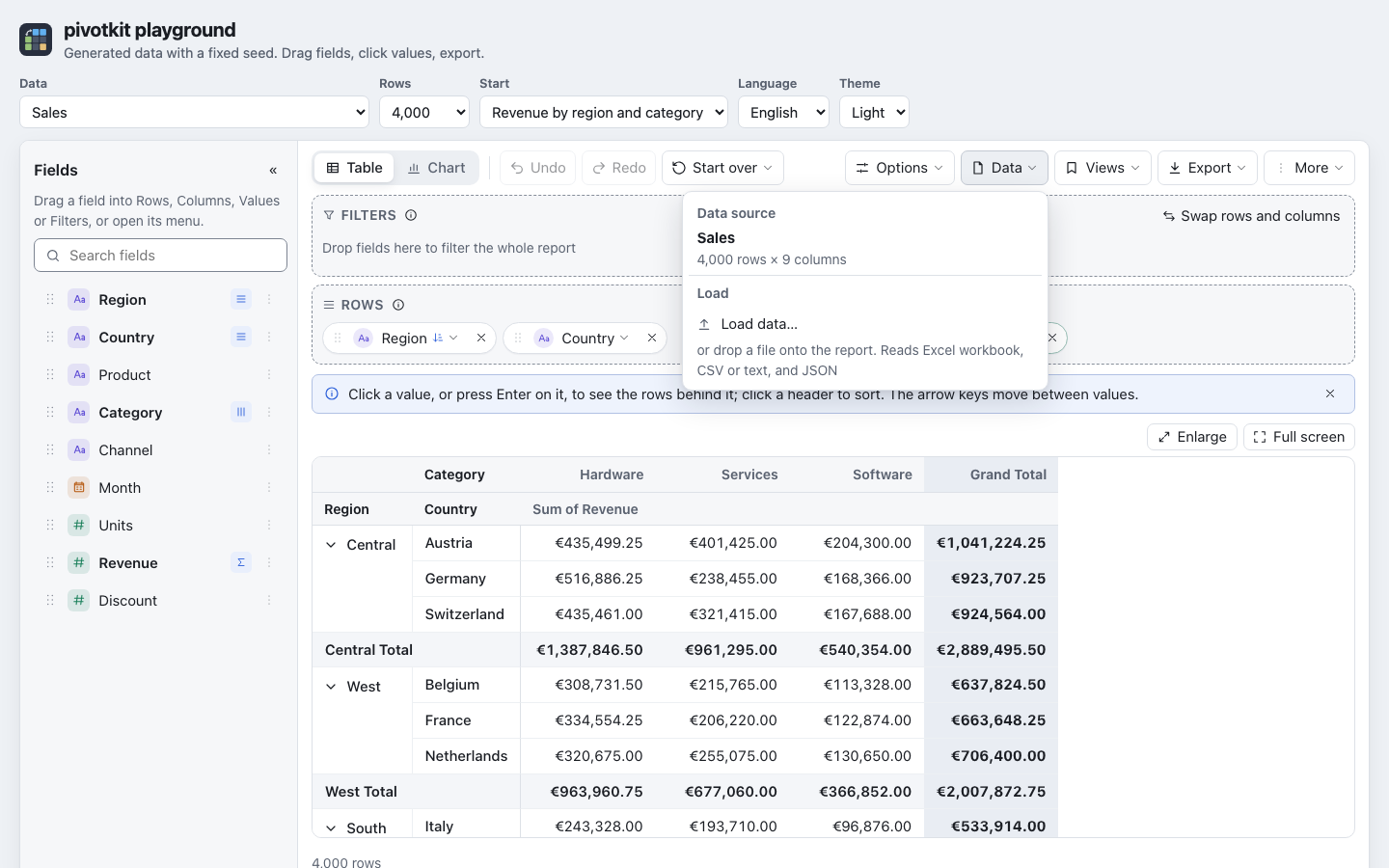
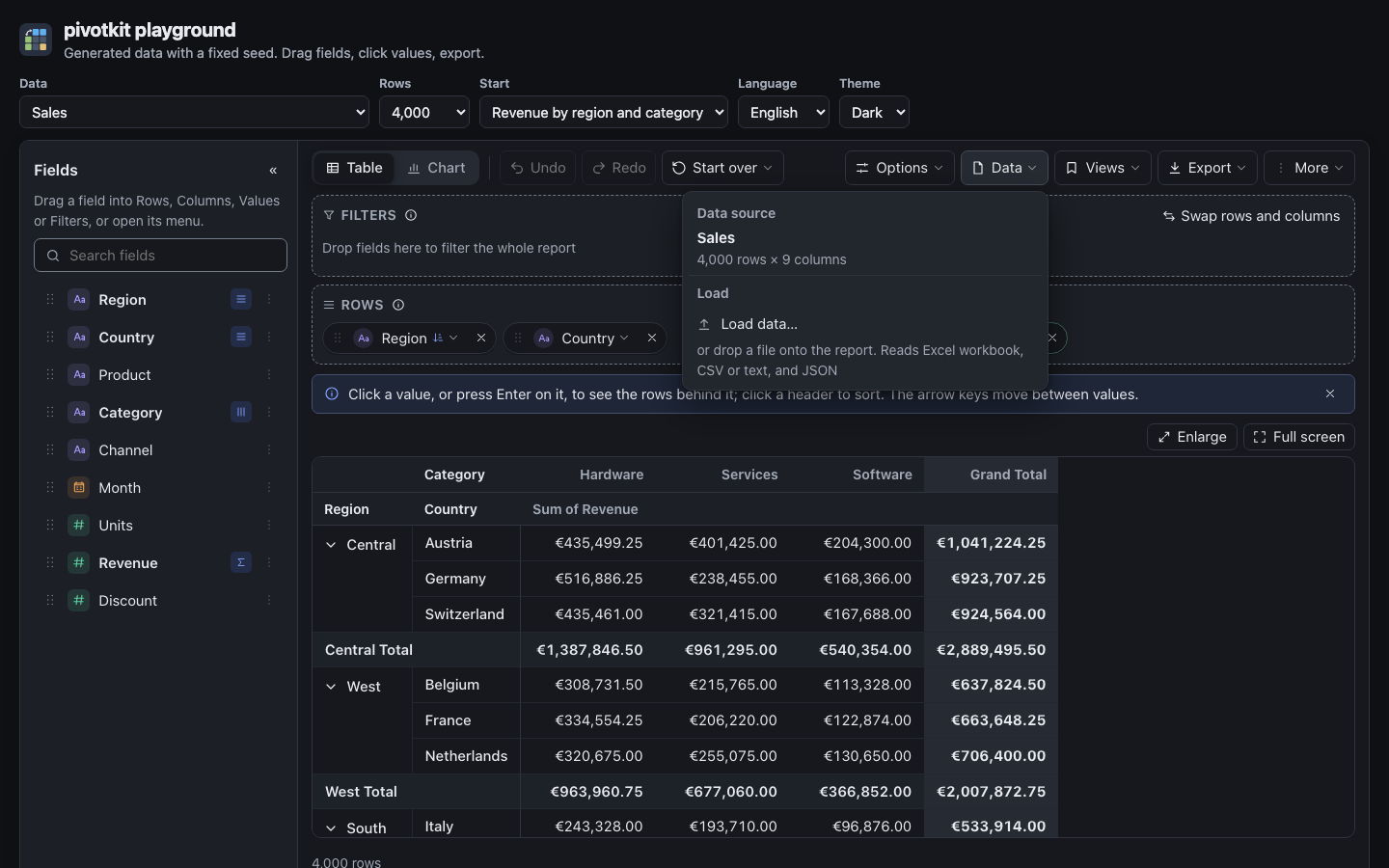
Load a file
- Drag the file from your desktop onto the report and let go, or open Data in the toolbar and pick Load data….
- Check the preview: the first rows, the type of each column, and the notes on what was read.
- Change a column's type where it is wrong (a postcode as Text, say), or pick another sheet of a workbook.
- Click Load data. Cancel or Escape keeps the data you had.
| Format | Files |
|---|---|
| CSV, TSV, text | .csv, .tsv, .txt, .tab: commas, semicolons, tabs or vertical bars; German or English numbers and dates |
| JSON | .json: a list of records, or a table under a property |
| Excel workbook | .xlsx, where the application added the Excel plugin; one sheet at a time |
The Data menu says which formats the report reads ("Reads Excel workbook, CSV or text, and JSON").
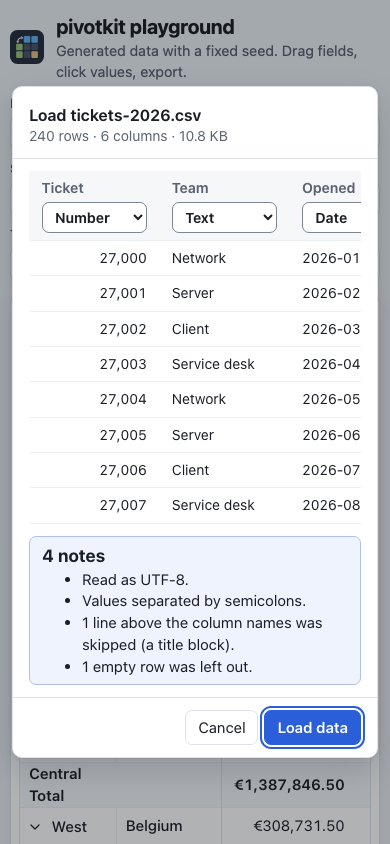
The preview
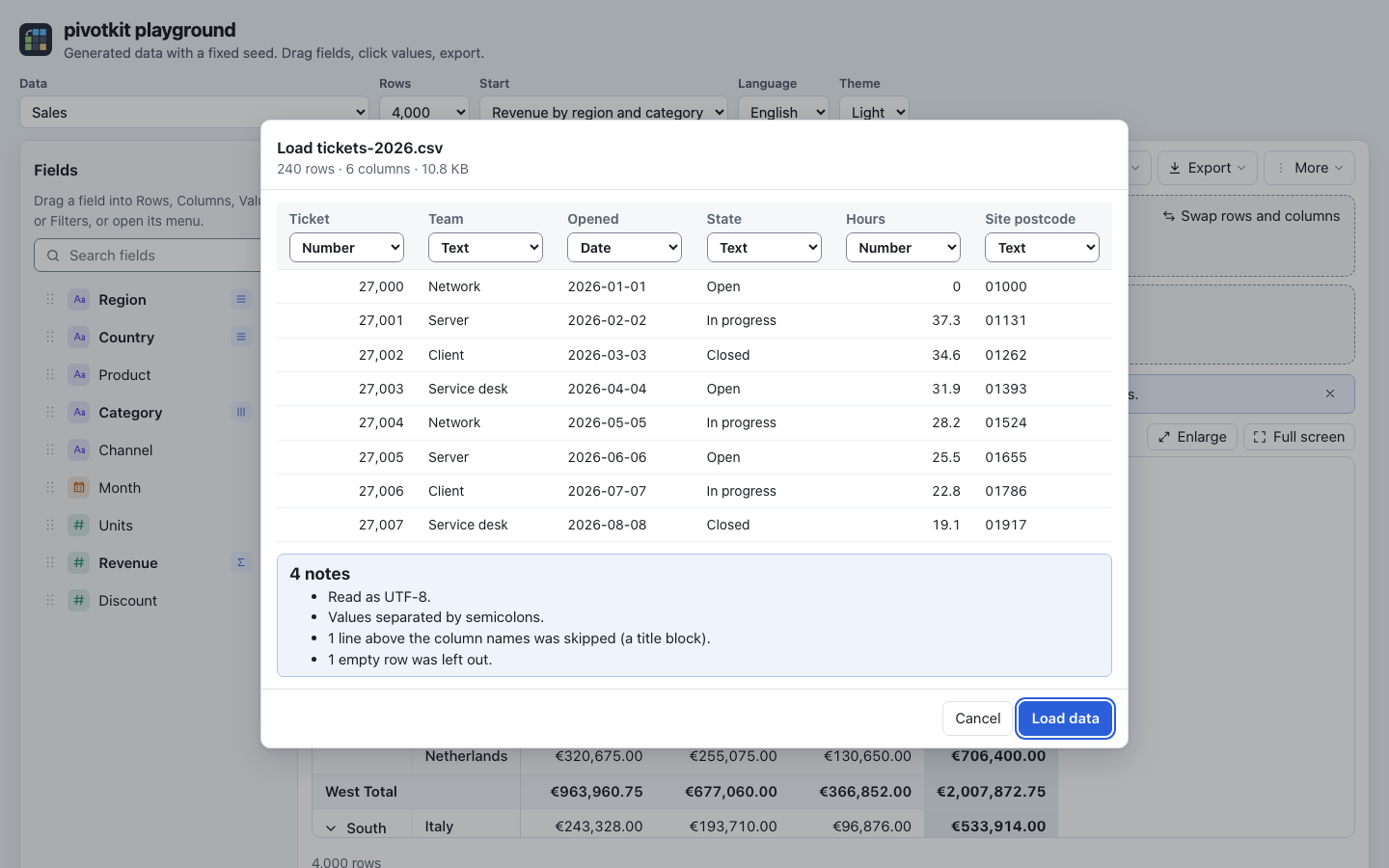
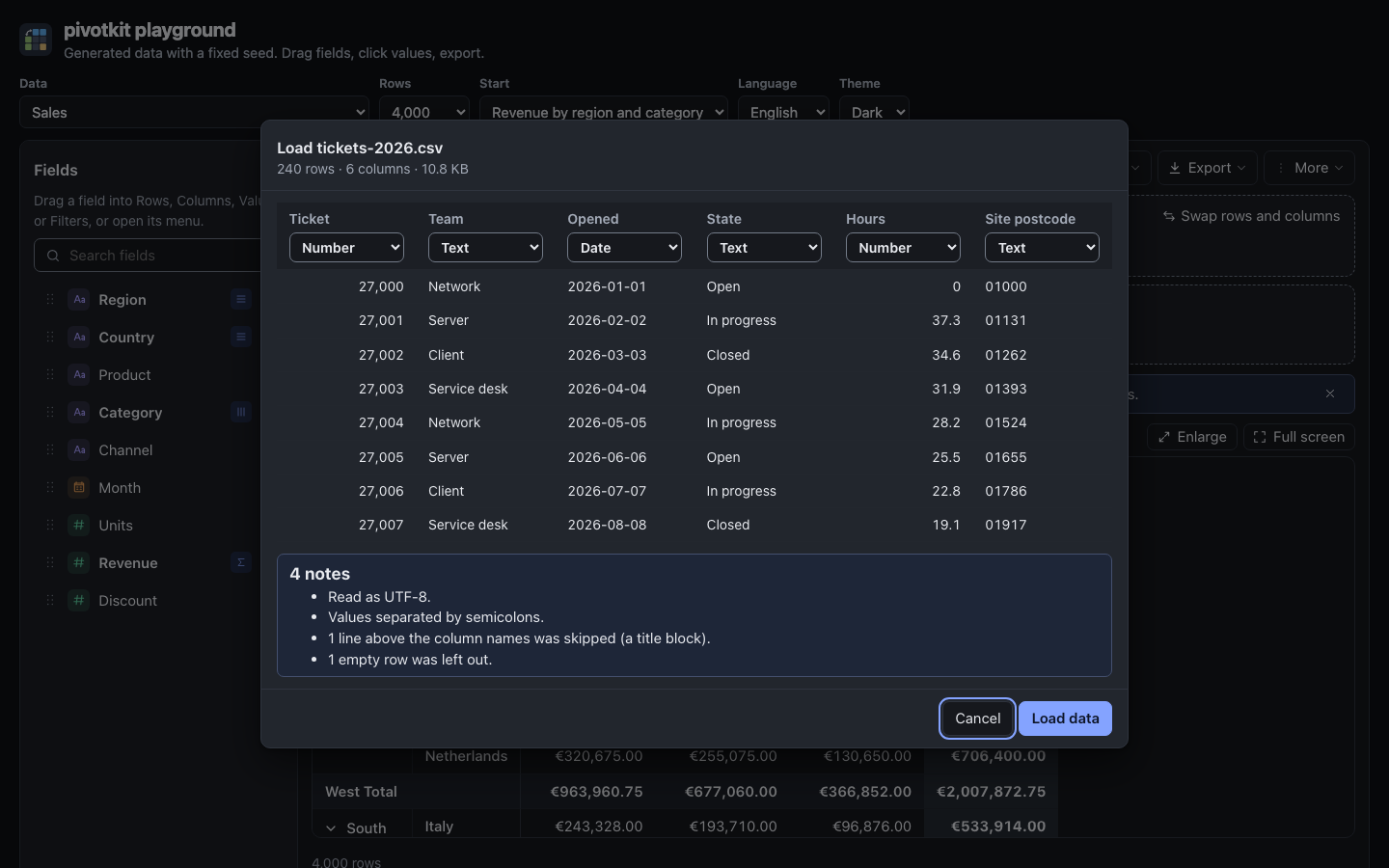
| Part | What |
|---|---|
| Title | "Load tickets.csv", with the rows, the columns and the file's size. |
| Sheet | A workbook with more than one sheet: which one to read. A hidden sheet says "(hidden)". Another sheet reads the file again. |
| The first rows | Eight rows as they will be loaded, numbers in your language's notation. |
| Type | Under each column name: Text, Number, Date or Yes/No. The report picks one from the values; change it here. A value that does not fit the type you pick stays empty, and a note counts them. |
| Notes | What was read how and what was changed: the encoding, the separator, lines skipped above the column names, empty rows left out, columns renamed, values cut. |
While a large file is read, the preview shows how far it is, with Cancel. Up to 60 columns are shown; the others keep the type found.
How the types are found
A column of whole and decimal numbers is a Number, in German (1.234,5) or English (1234.5)
notation; dates such as 10.11.2026, 2026-11-10 or 11/10/2026 are a Date; true and
false (also WAHR and FALSCH) are Yes/No. A number with a leading zero (01067, a
postcode) or more than 15 digits (an identifier) stays Text, so nothing is lost. A column with
an ID-like name (ID, Nr, No, Number, Key) is counted in Values instead of summed
(adding fields).
After loading
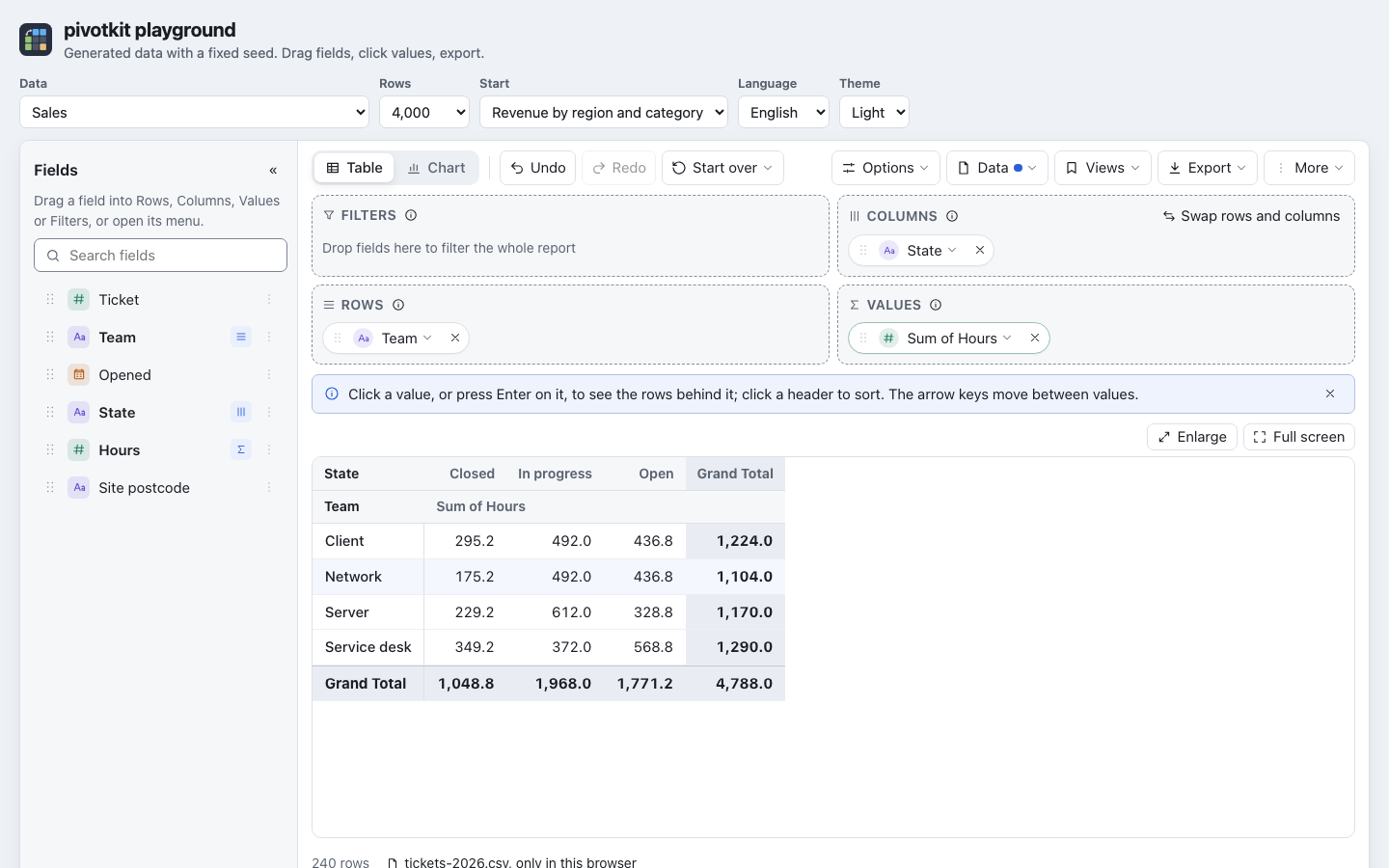
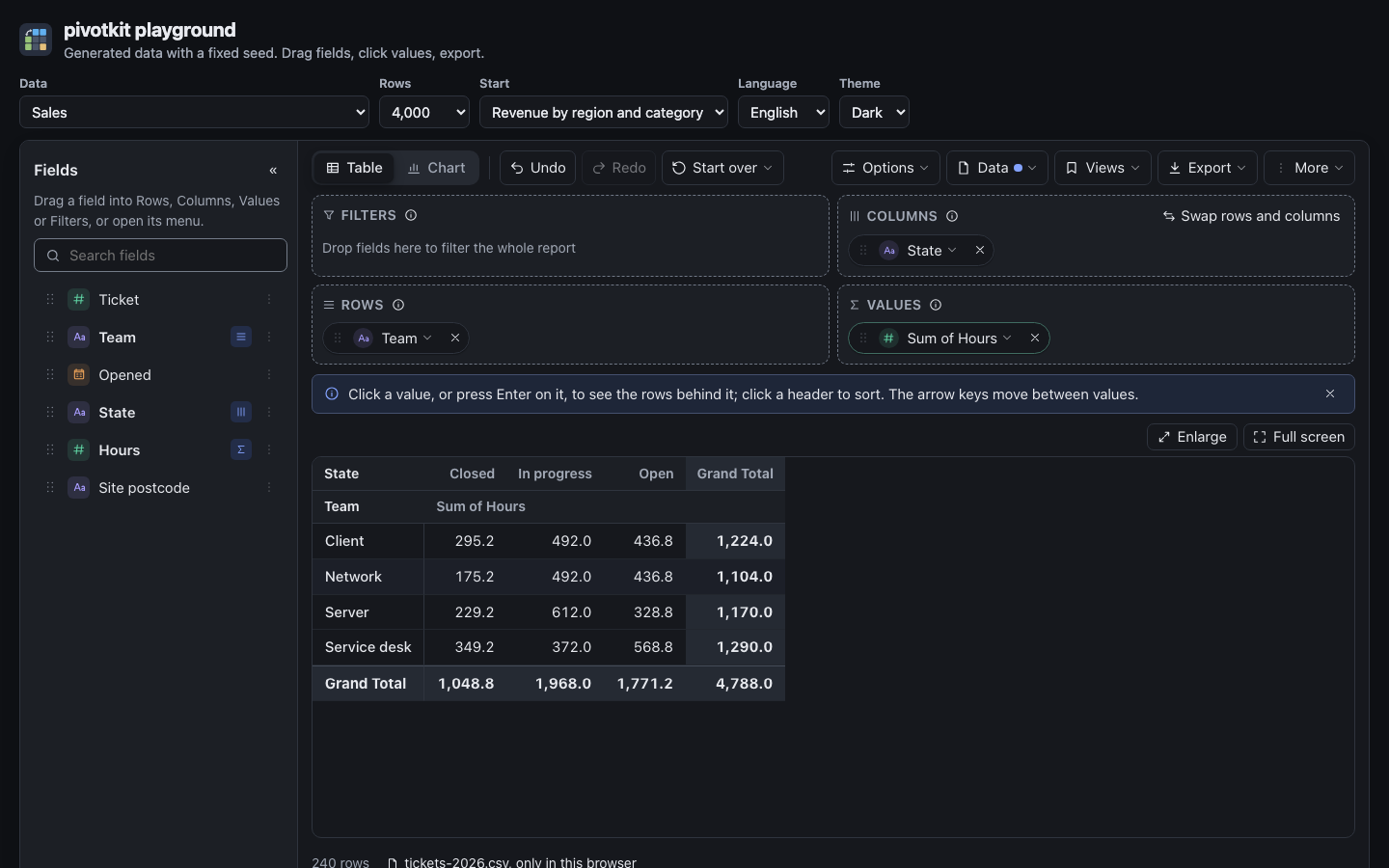
- The field list shows the file's columns. Fields of the report that the file has too stay where they were; the others go.
- Data carries a dot, and the line under the result names the file: "tickets.csv, only in this browser" (with the sheet of a workbook).
- A note says what was loaded: "tickets.csv loaded: 240 rows, 6 columns", with Undo.
- Views you save now belong to this file: loading a file with the same name and the same columns in the same order offers them again under Views, also a newer export with other rows. A renamed file, or columns renamed, added or in another order, make it other data, and the application's data and other files do not show them (saved views; how a file is named).
Back to the original data
- Data, Back to original data shows the application's data again, with the view you had on it. It is there only while a file's data is shown.
- Undo takes back loading too: first your changes on the file, then the loading itself; Redo goes forward again, file and changes included. Undo goes back over the last three data steps (loads and Back to original data); older ones are let go, since each one keeps a whole data set.
- Reloading the page shows the application's data: the file is not kept. Where the application builds the report anew on the same page (some switch it on a change of light and dark), the file comes back with your view and your Undo steps, as long as the application's data is the same; after Back to original data it does not.
When a file cannot be loaded
The data you had stays, and a note says why, in the words of the reader:
| Note | What to do |
|---|---|
| "tickets.csv could not be loaded: the quote that opens a value in line 12 is never closed." | Fix the line in the file, or export it again. |
| "… has more than 1,000,000 rows (limits.rows) …" | Load a smaller extract; the application can raise the limit. |
| "… the workbook holds macros …", "… an Excel 97-2003 workbook …", "… protected with a password …" | Save it as an Excel workbook (.xlsx) without macros, or as CSV. |
| "… no reader for this kind of file." | The report does not read this format (a PDF, say); save the data as CSV. |
| "Drop one file at a time." | More than one file was dropped. |
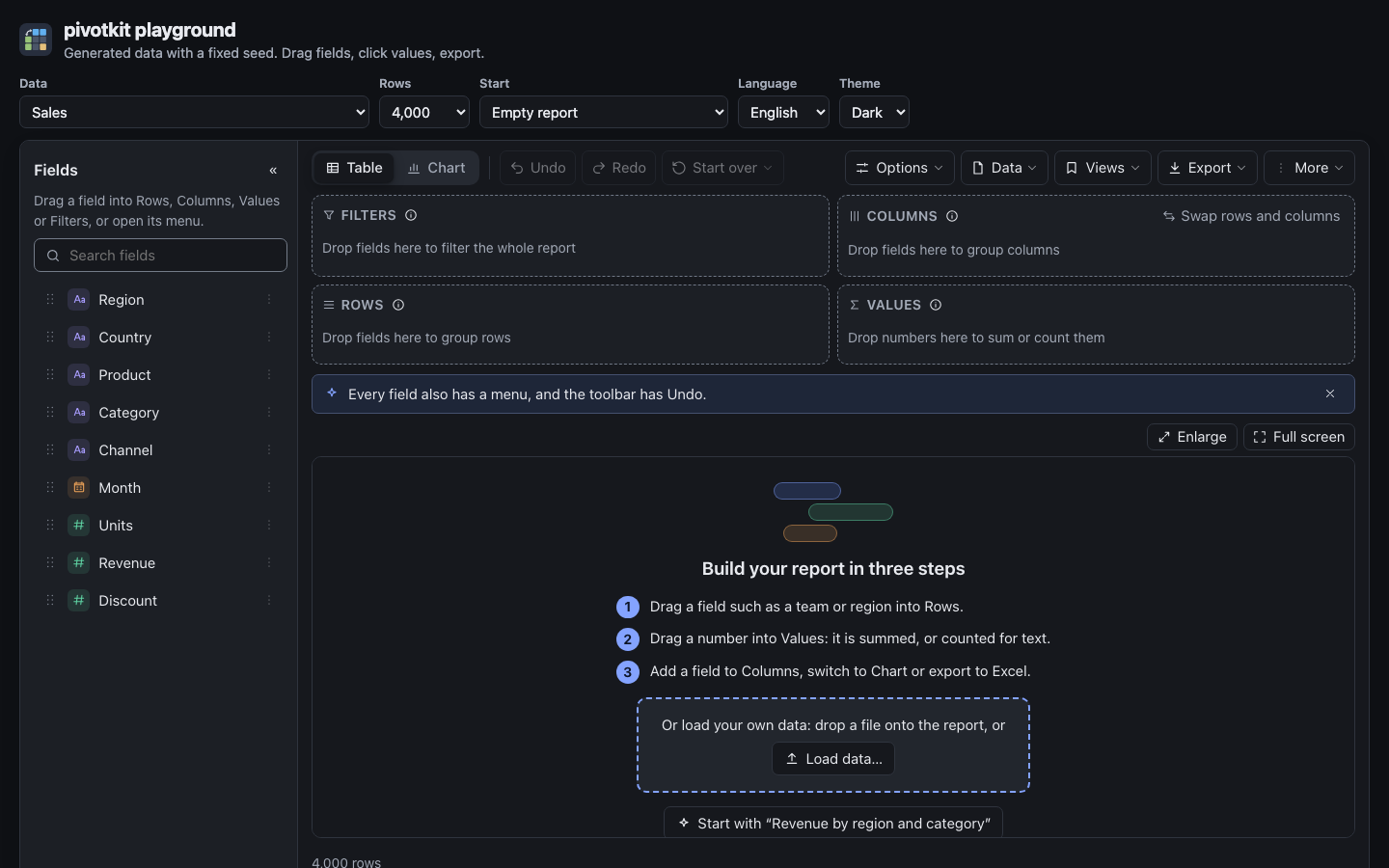
An empty report of an application without data of its own says "Load data to start", with "Drop a file onto the report, or" and Load data….
A sheet of a workbook that cannot be read says why above the sheet list; pick another sheet, or Cancel. A note about a file that could not be loaded closes when you drop or pick the next one.
Keyboard, screen readers, phones
- Data is a toolbar button like the others: Tab to it, Enter opens it, Load data… is the first entry. On a narrow report it is under More, which then carries the dot.
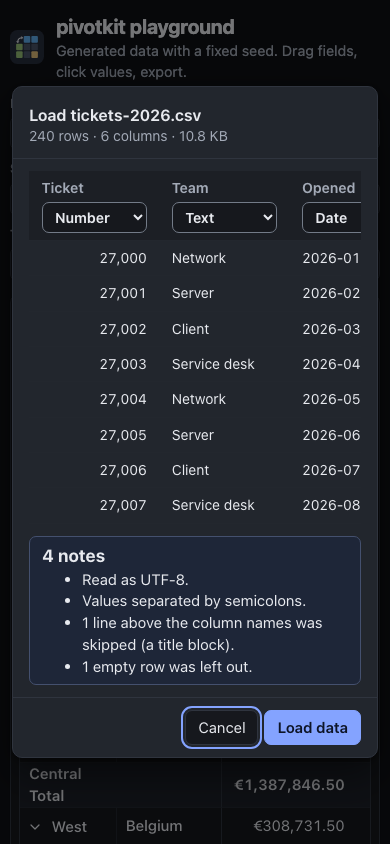
- The preview is a dialog: the focus moves in, Tab stays inside, Escape cancels, and the focus goes back to where it was. When the first rows are there the focus is on Load data, so Enter loads; Tab from there goes to the sheet and the types, each a list named "Type of Hours", Shift+Tab to Cancel. After another sheet is picked the focus stays on the sheet list. The dialog is described by its line of rows and columns and by the notes, so a screen reader reads them out.
- Undo's keys (Ctrl+Z, Ctrl+Y) do nothing while the preview is open.
- On a phone the preview fills the width of the window; the table scrolls sideways.
For developers
Loading data is off by default: allowImport (React) or the attribute allow-import (the web
component) turns it on. Excel needs the pivotkit-xlsx plugin
in plugins; onDataLoad (React) or the event pivot-data-load reports every change of the data
shown and can refuse a file. A file comes back after a new mount of the report only with a
storageKey (details). See the React props, the
element reference and
Loading files for what the readers do.