Filters, top N and sorting
A filter leaves rows out of the report. Open a field's menu and choose Choose values…: tick the values to keep, or set a condition on their labels. A field in Filters filters the whole report; a field on Rows or Columns filters its own items. Value condition… and Show top items… keep the items whose value meets a condition, or the largest N.
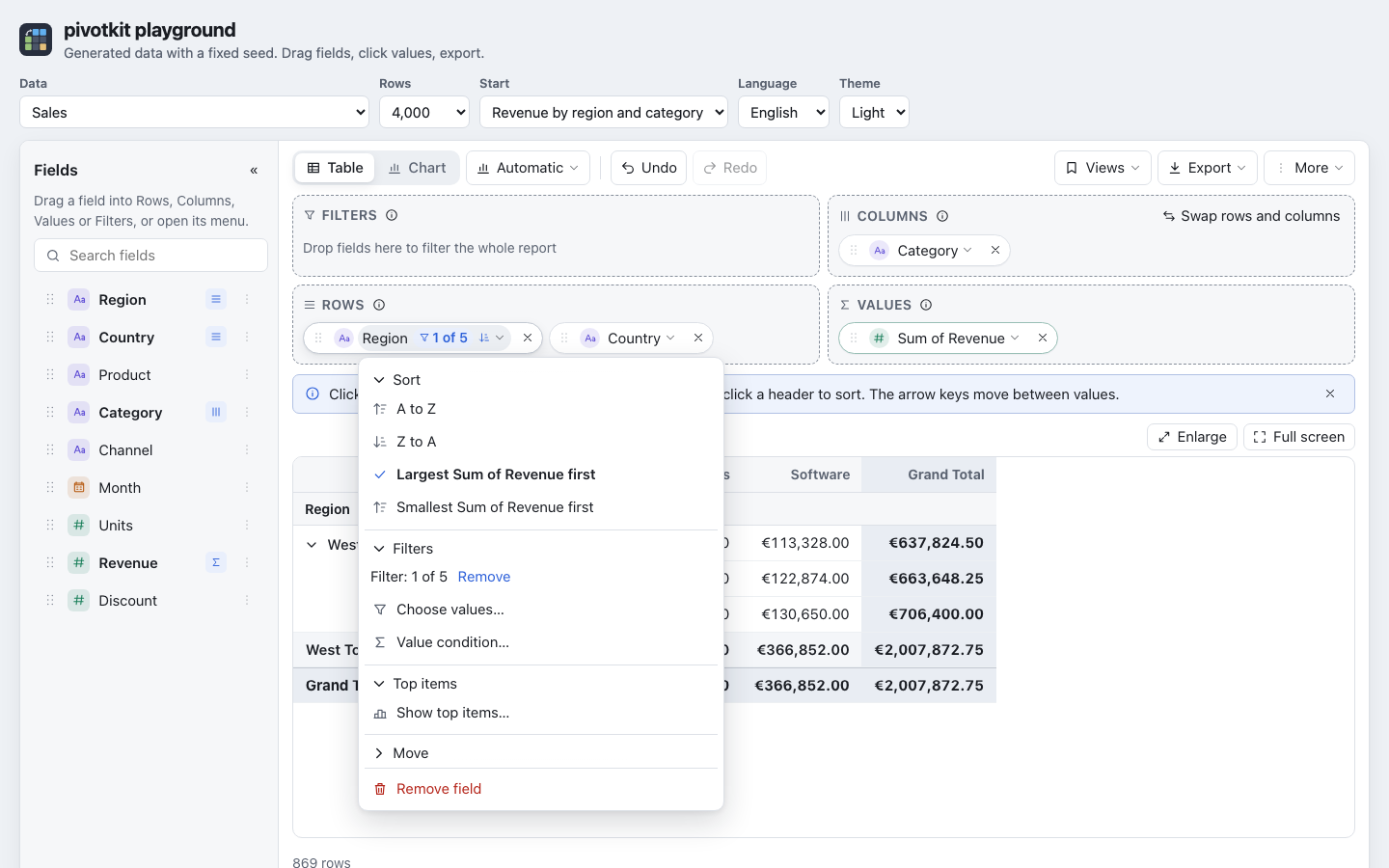
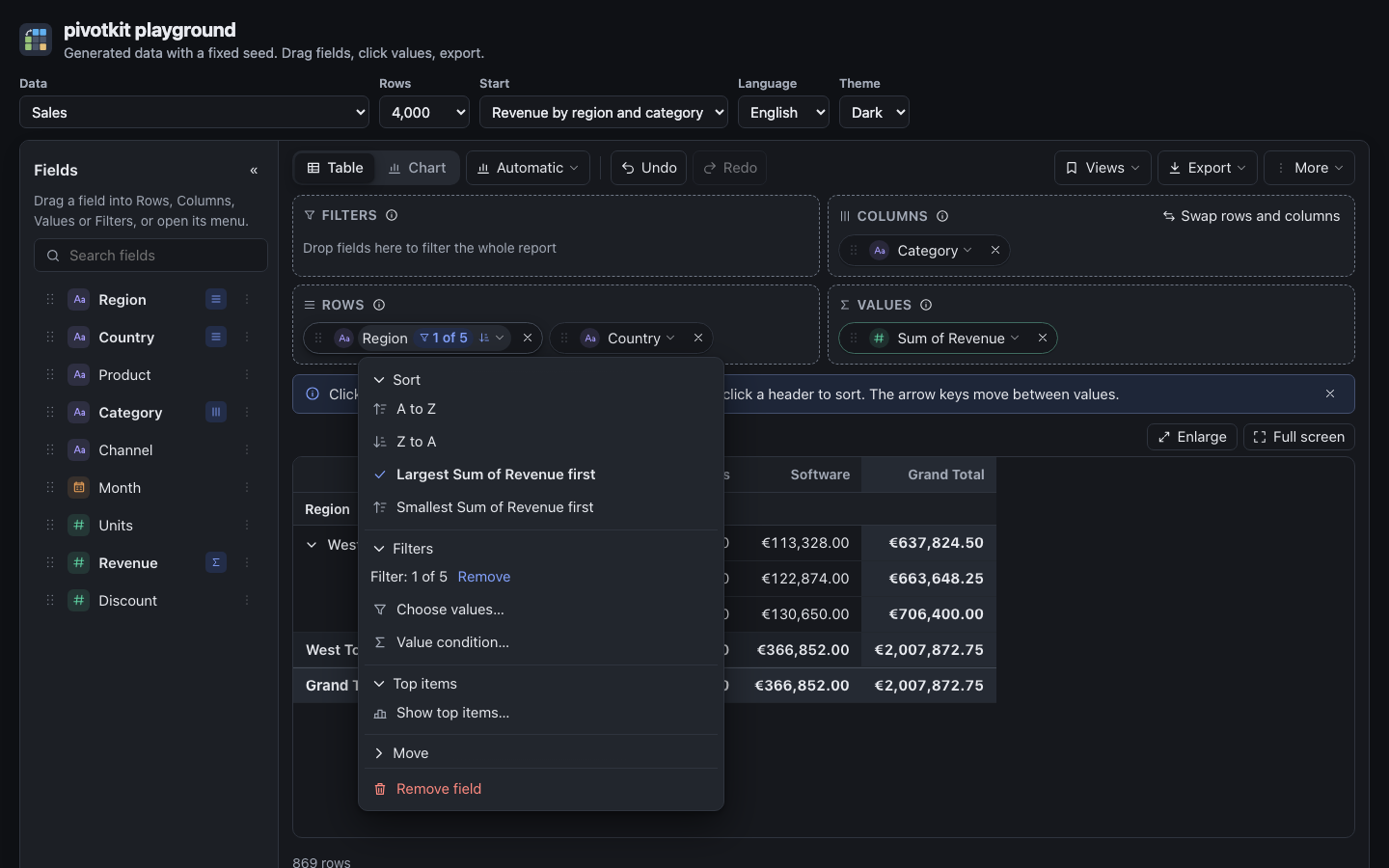
The menu of a row or column field shows first what is set, one line per setting: "Filter: 15 of 45 · Remove", "Sum of Revenue > 1,000 · Change · Remove", "Top 10 by Sum of Revenue · Change · Remove". When nothing is set, one item stands there instead ("Show top items…"); a click opens its form in place.
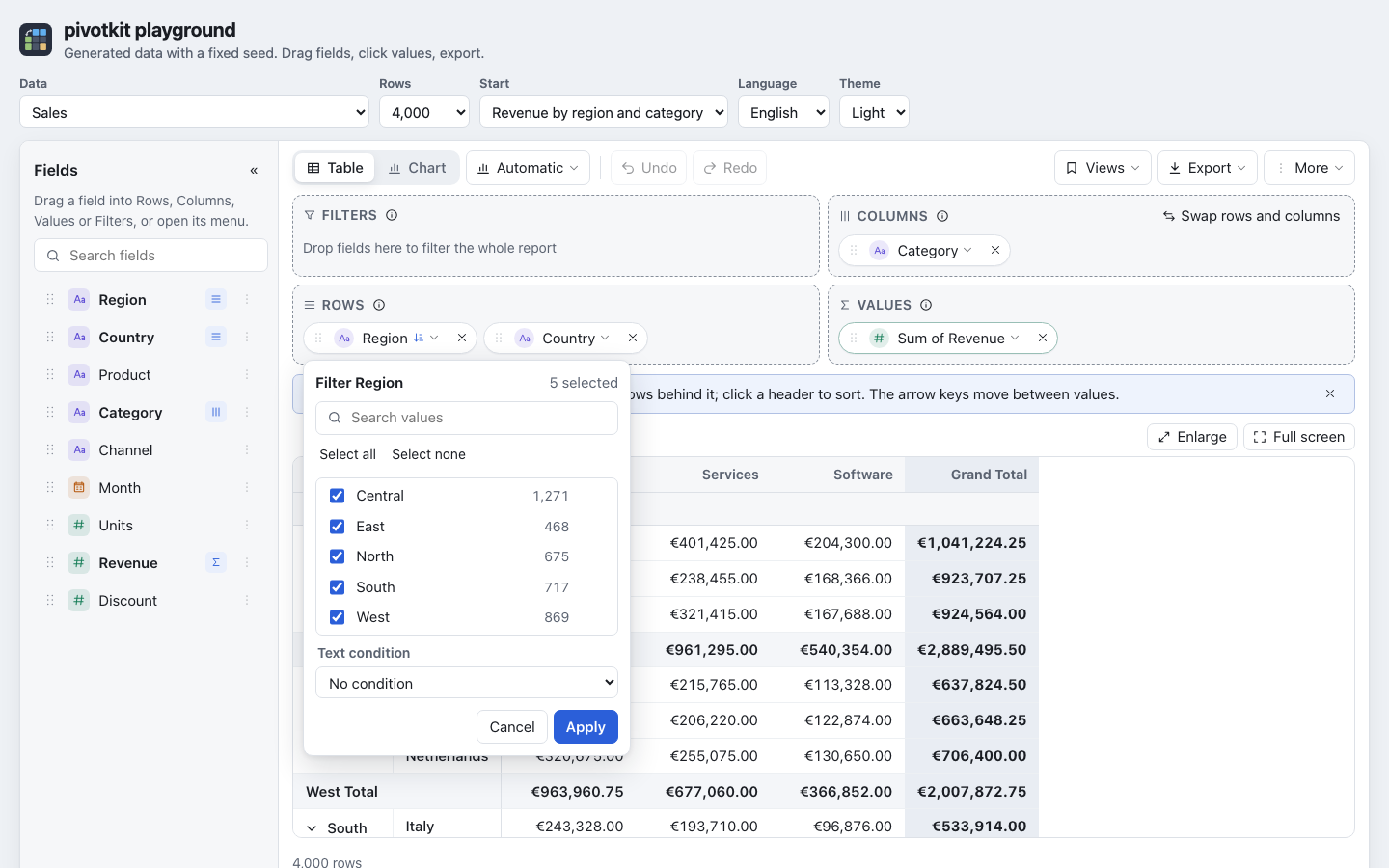
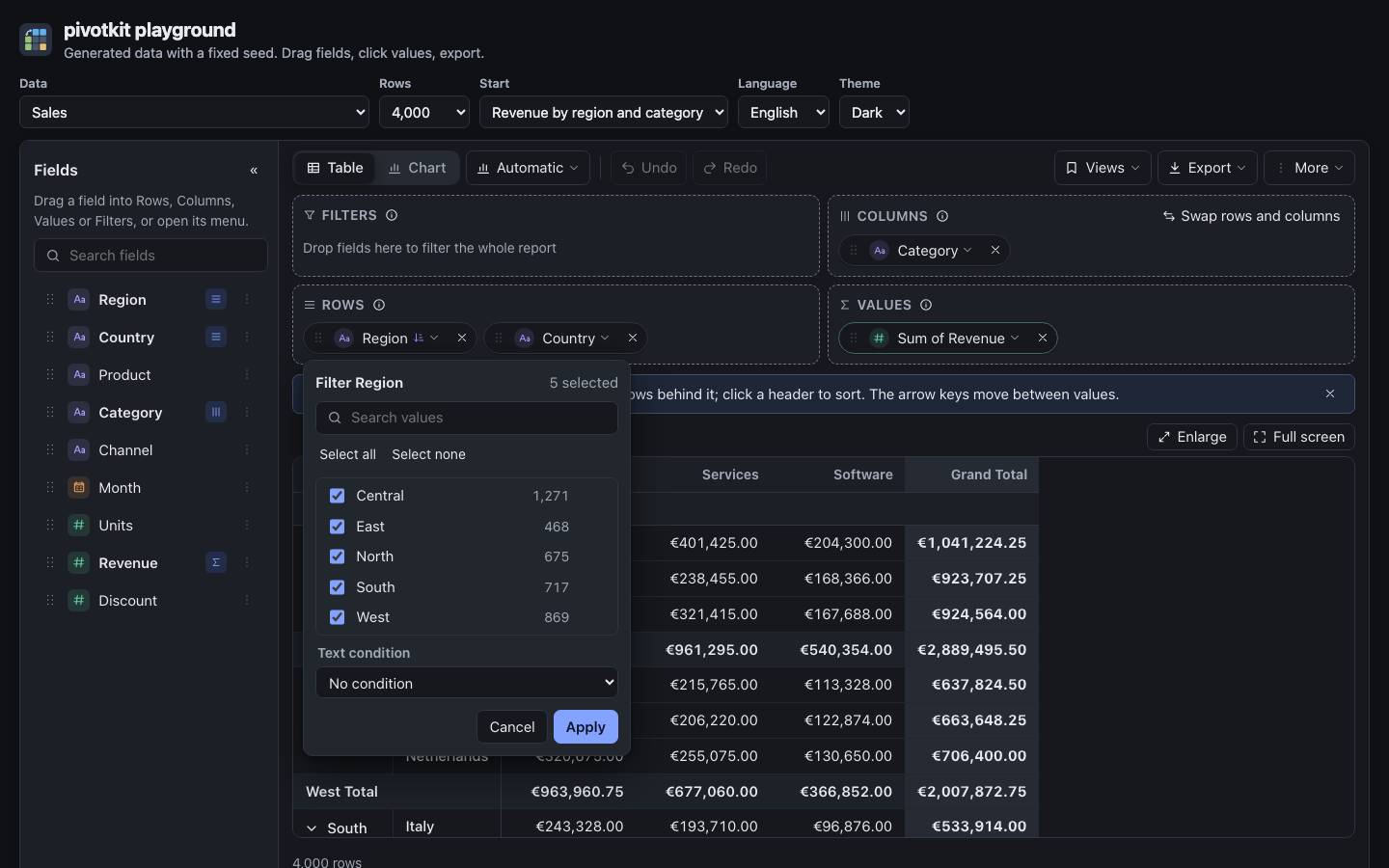
Filter by values
- Open the field's menu and choose Choose values… (a chip in Filters opens the filter with a click).
- Untick the values to leave out, or click Only next to a value to keep it alone. Select all and Select none act on what the search finds.
- Press Apply. Cancel or Escape leaves the filter as it was.
| In the filter | What it does |
|---|---|
| The values | Each with its row count; "N selected" at the top. At most 300 are listed; below them "300 of 1,045 values; search to find more" says that the search finds the rest. |
| Search | Narrows the list; Select all and Select none then act on the values it finds (all of them, also those past the first 300). |
| Only | Next to each value: keeps that one alone. |
| Text condition | A condition on the labels: is, is not, contains, does not contain, begins with, ends with. For a text field it reads "Text condition", for a number "Condition on the label" (the number as the table writes it). A date (or a grouping of one) and a yes/no field have none: their items are chosen in the list; a condition a loaded view brings still shows, so it can be removed. |
| Remove filter | At the top of the filter while the field is filtered. |
Details:
- Your choice is a draft until Apply.
- The report remembers the values you left out, not the ones you kept, as Excel does: a value that is new in later data shows up. With every value ticked, the field is not filtered at all.
- The × in the text of a condition removes the condition at once; the values you ticked stay a draft until you apply them.
- While a field is filtered by its values or a text condition, its menu says what they keep, above Choose values…: "Filter: 15 of 45" or "Filter: contains “an”", with Remove next to it, which removes the values and the text condition (a value condition and Top N stay). Remove closes the menu; the focus goes back to the chip. Folded, the Filters title says it in short: "15 of 45".
- A field keeps its filters when it moves between Rows, Columns and Filters. Moved to Values, it leaves its filters behind. A field that leaves the report (its x, Remove field, or dragged back to the field list) takes its filters and its sort with it.
Filter a field that is not in the report
Filter… in the menu of a field in the field list opens its filter at once. Apply puts it into Filters with what you chose; Cancel changes nothing. Moved to Rows or Columns later, it keeps its filter.
Value condition
Value condition… in the menu of a row or column field keeps the items whose value meets a condition: "regions with more than 2,000,000 revenue". A click opens its form in the menu, with the focus in its first field; Cancel closes the form and puts the focus back on Value condition….
- Pick the value it compares (a choice appears when the report has several values that give numbers; the first one is chosen).
- Pick an operator: equals, does not equal, greater than, greater than or equal to, less than, less than or equal to, between, not between.
- Type the number, two for between, and Apply.
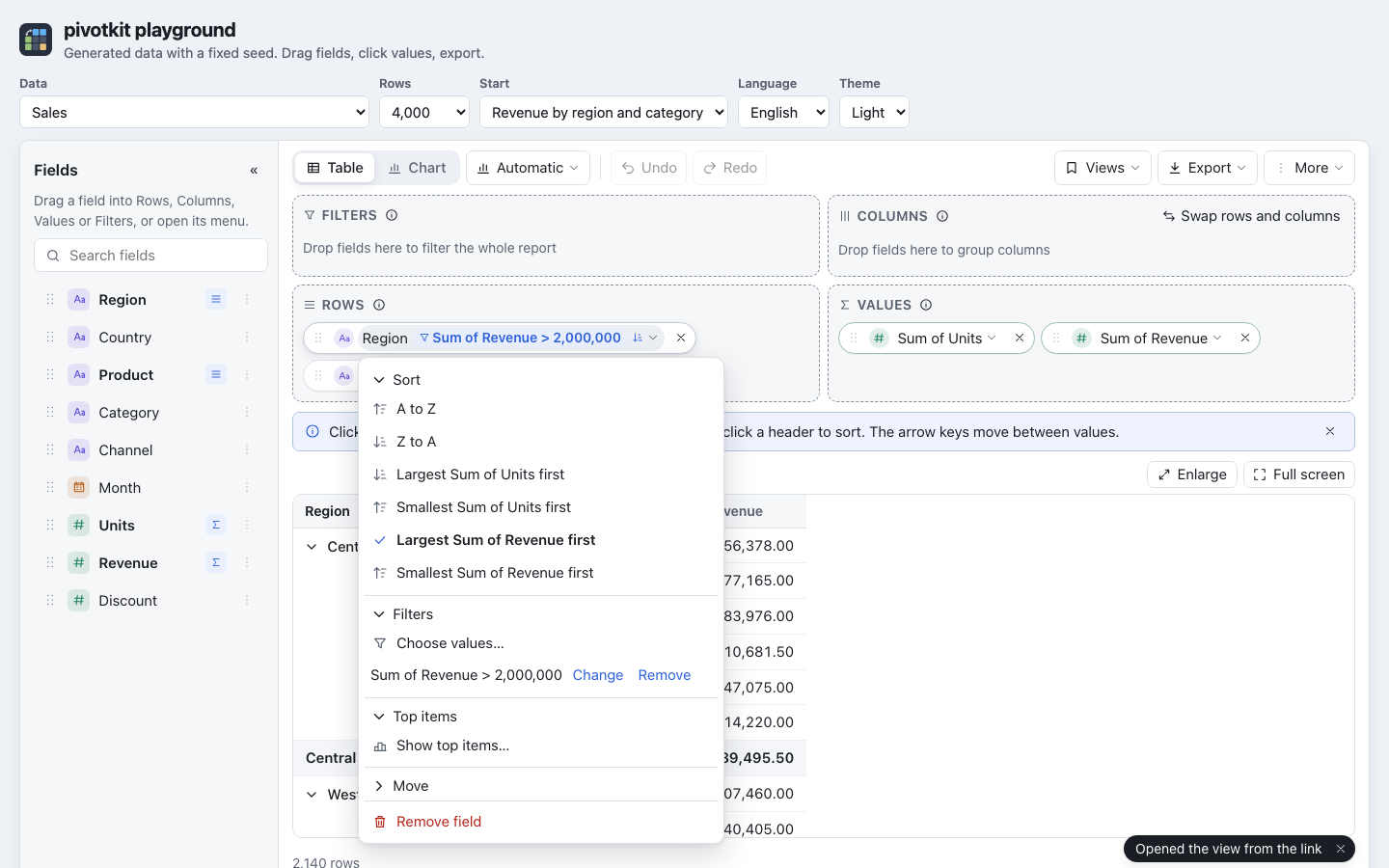
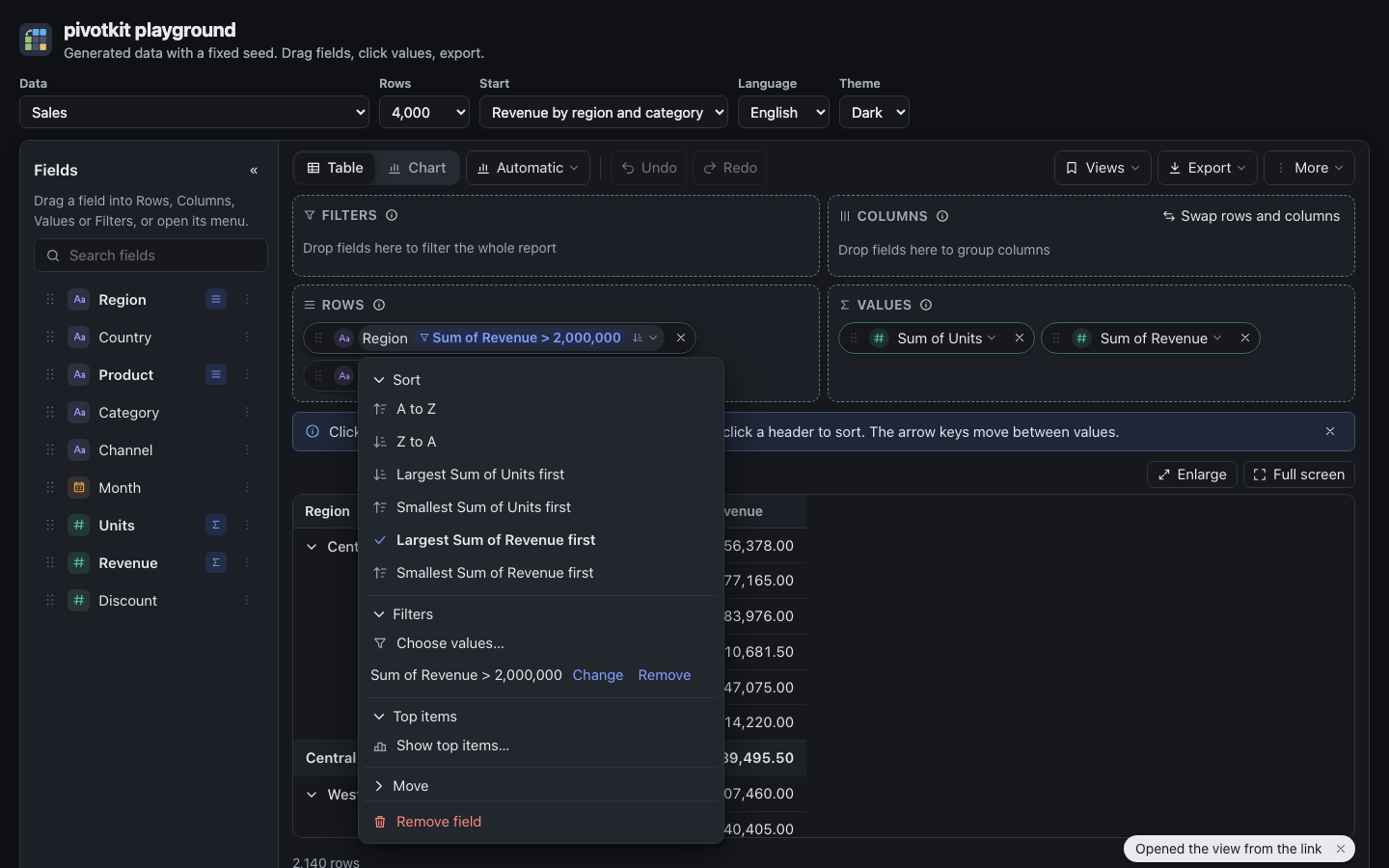
- The chip then shows it in short, "Sum of Revenue > 1,000" (a long one ends in "…"; its whole text is in the chip's name for screen readers and in its tooltip), and so does the menu: "Filter: Sum of Revenue > 1,000".
- The number is compared with the value as it is computed - the sum, the count, the average - not with a "show as" percentage and not with what its format shows: for "Revenue as % of grand total", 0.25 is no condition on 25 %, 1000 is one on the sum of revenue.
- Between keeps the items from the smaller to the larger number, in whatever order they were typed; the chip writes the smaller one first.
- Once set, the menu shows it in a line of its own, "Sum of Revenue > 1,000 · Change · Remove": Change opens the form with it (changing it replaces it; Apply with no number removes it), Remove removes only the condition. Each is one step Undo takes back.
- A field that holds no number says so under the number.
- A view may hold more than one value condition or top N for a field (from a link, say): the menu edits the first one and leaves the others as they are. A condition whose value is no longer among the report's values keeps it: the form offers it next to the values, chosen.
Top N
Show top items… in the same menu (section Top items) opens a form: Top or Bottom, how many, and by which value (a choice when the report has several values that give numbers; the first value is the default), then Apply. Once set, the section says it in one line, "Top 10 by Sum of Revenue", with Change (the form again, filled in) and Remove; Apply with no count removes it too. Each is one undo step. Apply and Remove close the menu and put the focus back on the chip; Cancel closes the form and puts it back on the line.
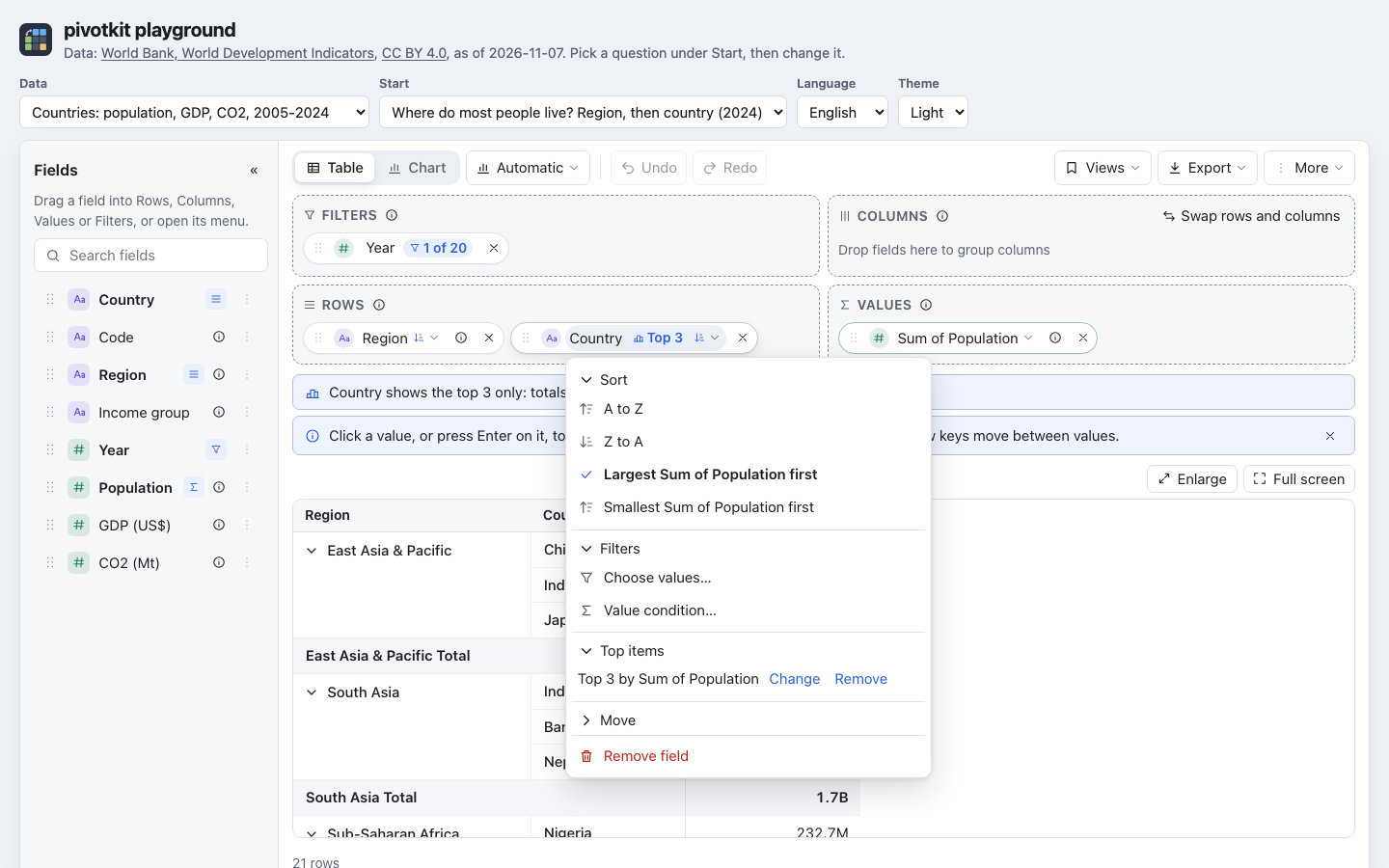
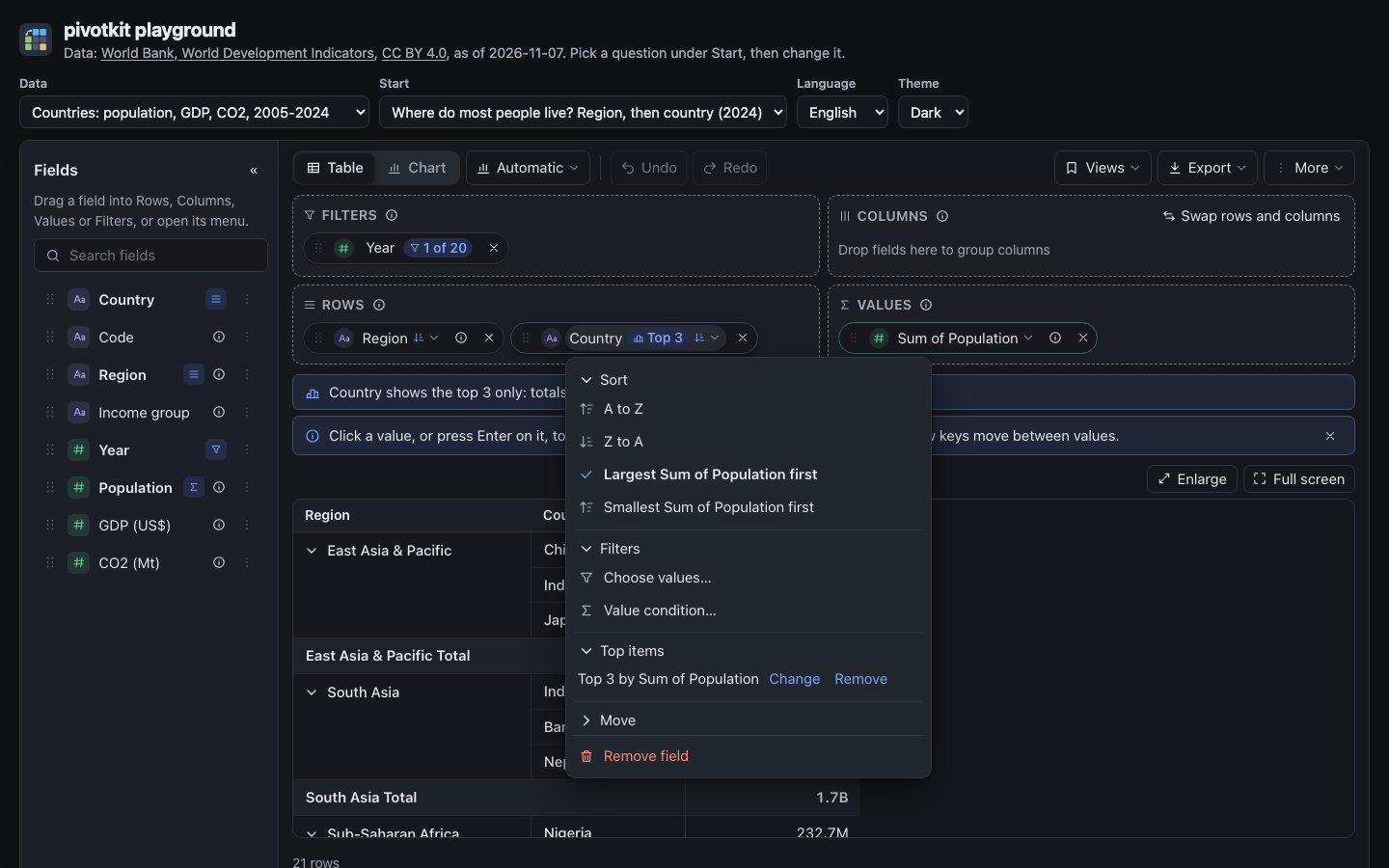
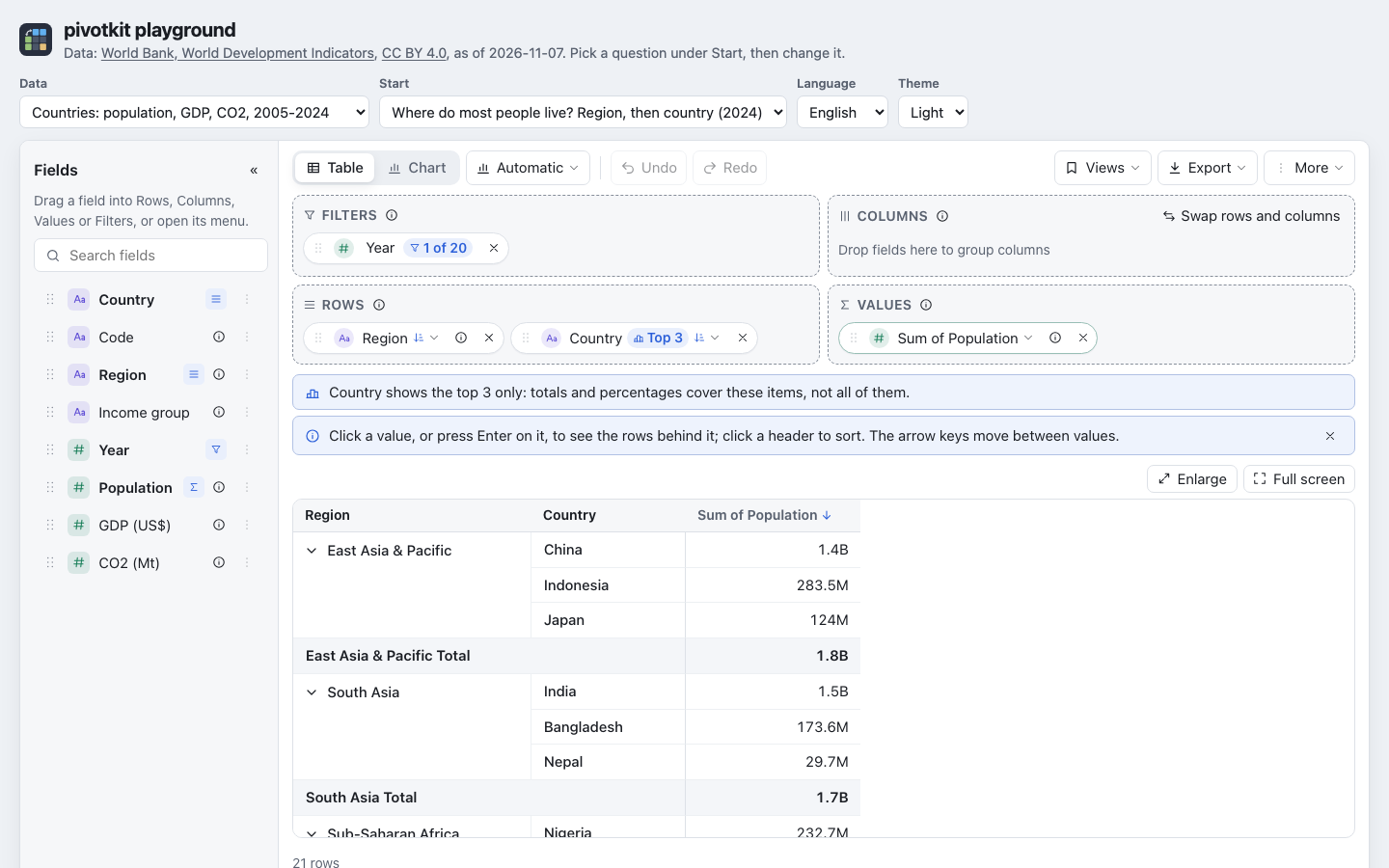
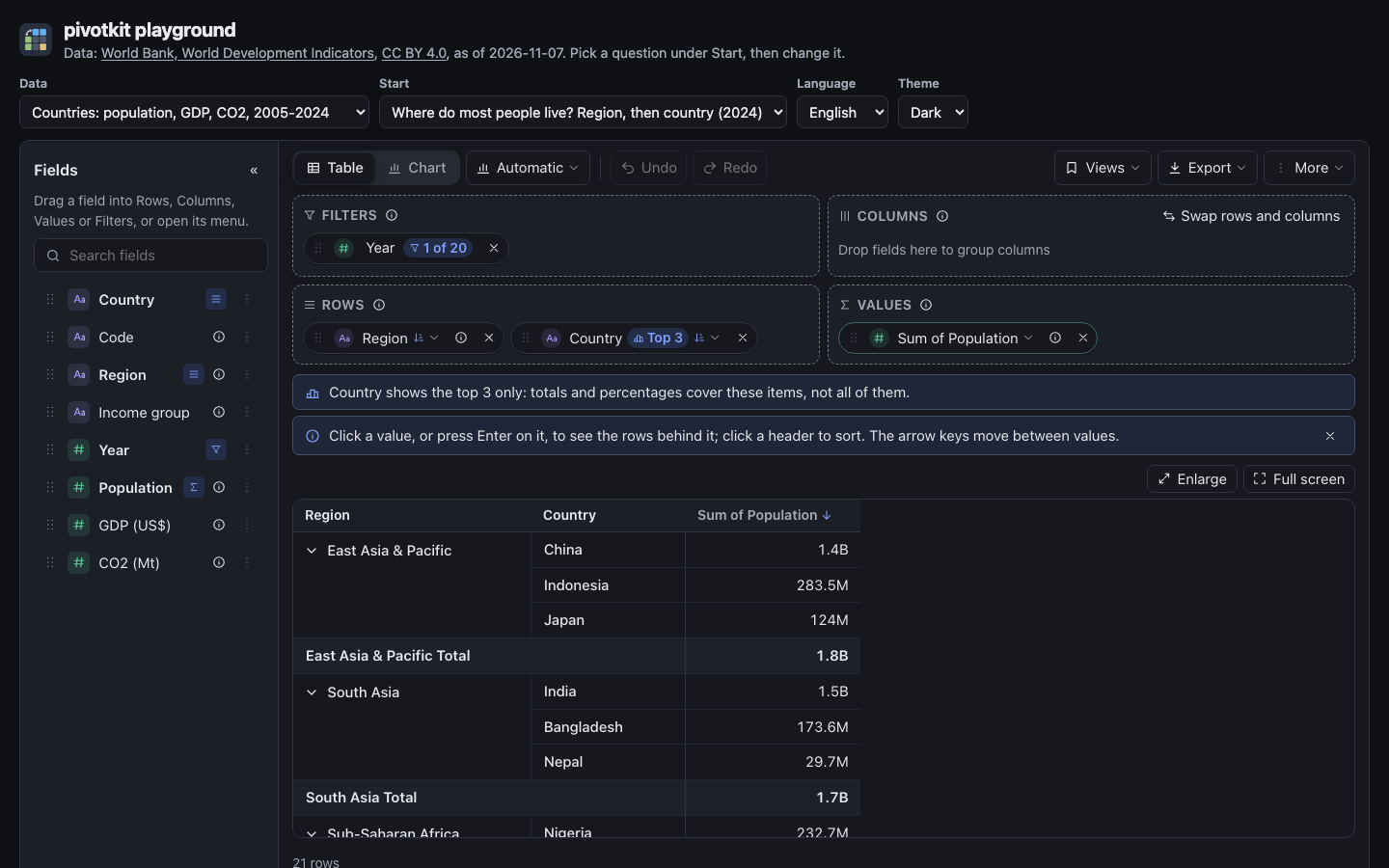
- Top N and value filters work within each item of the field above, as in Excel: with Region and Country on Rows, "top 3 countries" keeps three countries per region. Totals then add up the items shown only, so a region's total is the total of its top three countries.
- A note above the table says what a top N does to totals and percentages ("Country shows the top 5 only: ..."). It always shows and cannot be dismissed.
- Top N keeps exactly N items. A tie at the cut keeps the item that comes first in the data; Excel may keep all tied items.
Numbers in the menus
Numbers in the menus (value condition, Top N, number ranges) are typed as the report's language writes them: "1.000,5" or "1000,5" in German, "1,000.5" in English; a plain number with a point ("1000.5") is read in every language. Anything else is no number, and the field says so under it ("Enter a number, such as 1,234.5.") instead of guessing.
Sorting
Click a name in the table's header to sort, or use the Sort section of a row or column field's menu. Both write the same sort, which Undo takes back.
Sort with a click on a header
| Click on | First click | Next clicks |
|---|---|---|
| A value's name ("Sum of Revenue") | Sorts the innermost field in Rows by it, largest first | Smallest first, then the field's own order again (A to Z, or its custom order) |
| A field's name in Rows ("Region") | Z to A (A to Z is the default) | A to Z, Z to A, ... From a sort by a value or a custom order, the first click gives A to Z. |
- The third click on a value's name goes back to the field's own order: A to Z, or its custom order. A Z to A you chose before is not kept.
- The arrow next to the name shows the sort you chose: down for largest first or Z to A, up for smallest first or A to Z. Pointing at the name, or the focus on it, shows the arrow of the next click, and the tooltip says what it does ("Sort by Sum of Revenue: largest first", "Sort Region: Z to A"). On a touch screen a faint arrow marks every name that sorts.
- With a field in Columns, only the value names of the Grand Total column sort: the sort goes by the whole row, not by one column. Without the grand total column the value names do not sort.
- A value that gives no number to sort by (below) does not sort; neither does a value's name while Rows is empty.
- Only the name is the button, not the whole header cell. A name can still be dragged into a zone.
- With the keyboard: Tab to the name, then Enter or Space. A screen reader hears the sort on the one header whose sort you chose ("sorted descending"; a field in its own order "sorted other"; the default A to Z is not announced on a header) and the new order ("Region sorted: Largest Sum of Revenue first").
Sort in the field's menu
The Sort section of a row or column field's menu:
| Entry | Sorts |
|---|---|
| A to Z, Z to A (dates: Oldest first, Newest first) | By the item's label: text in natural order for the language ("Item 2" before "Item 10"), numbers and dates by value. This is the default. Blank sorts last. |
| Largest Sum of Revenue first, Smallest Sum of Revenue first | By a value, one pair for each value that gives a number, with the value's name; without a value, by the number of rows. Items are sorted within their group. |
| Custom order, Custom order, reversed | In an order of its own, such as the seasons in the order of the year; offered when the application gives the field an order or a view brought one. |
- The entry in use has a check mark.
- A value gives no number to sort by when it lists distinct values, takes the first or last entry of a text, or the average, median, minimum or maximum of dates; the menu leaves those out.
- A field with an order of its own is sorted in it as soon as it is placed on Rows or Columns; choose A to Z to sort it by label instead, and the report keeps that choice.
For developers
The view's filters (include, exclude, label, value, top) and sort (label,
value, custom), and how a field gets its order (fieldDefaults.order), are in
Filters, top N and sorting.