Views, saving and sharing
A report you built is a view: which fields are where, the filters, the chart settings. You can undo every step, save the view under a name, pick one someone else saved, and share it as a link or a file. A view holds the names of fields and settings, not the data: whoever opens it sees the report on their own data.
Undo, redo, reset
| Button | Keys | Does |
|---|---|---|
| Undo | Ctrl+Z, on a Mac Cmd+Z | Takes back the last change. |
| Redo | Ctrl+Shift+Z or Ctrl+Y, on a Mac Cmd+Shift+Z | Repeats it. |
| Reset | Goes back to the start view, as one step you can undo. | |
| New, empty report (in Views) | Empties the report: no fields, the three first steps. One step you can undo; greyed out while the report is empty. |
Every change is a step: placing a field, a filter, a chart setting, loading a view. Saved views are not changed by any of them, only by saving.
The view you are working on
When you load a saved view, open a view file or a link, its name stands in the toolbar next to Views (before Export when Views is in More). A dot after the name means the report has changes you have not saved yet; it goes when you save, or when Undo brings the report back to the view as it was saved. While Views is in More (on a phone), More shows the same dot.
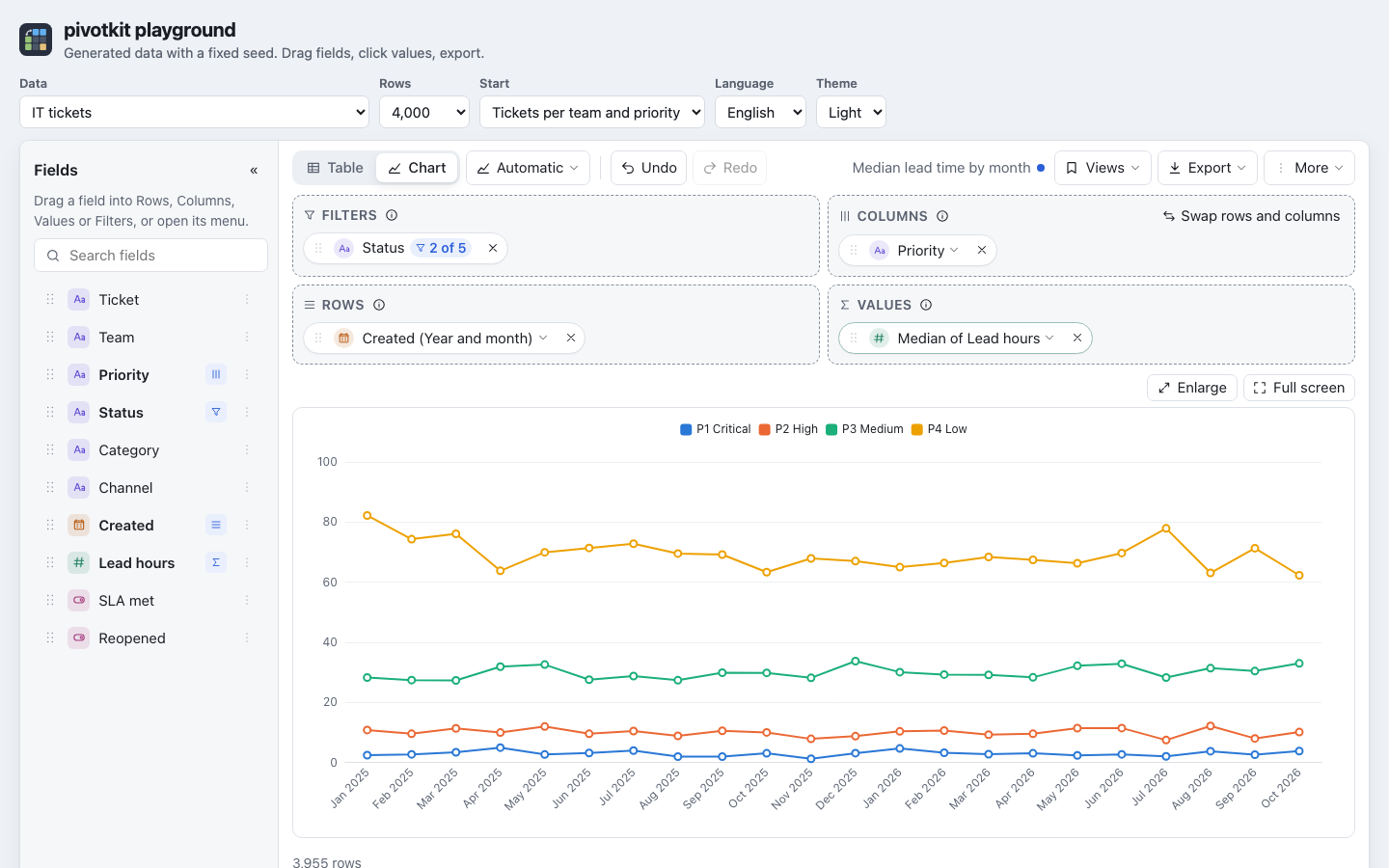
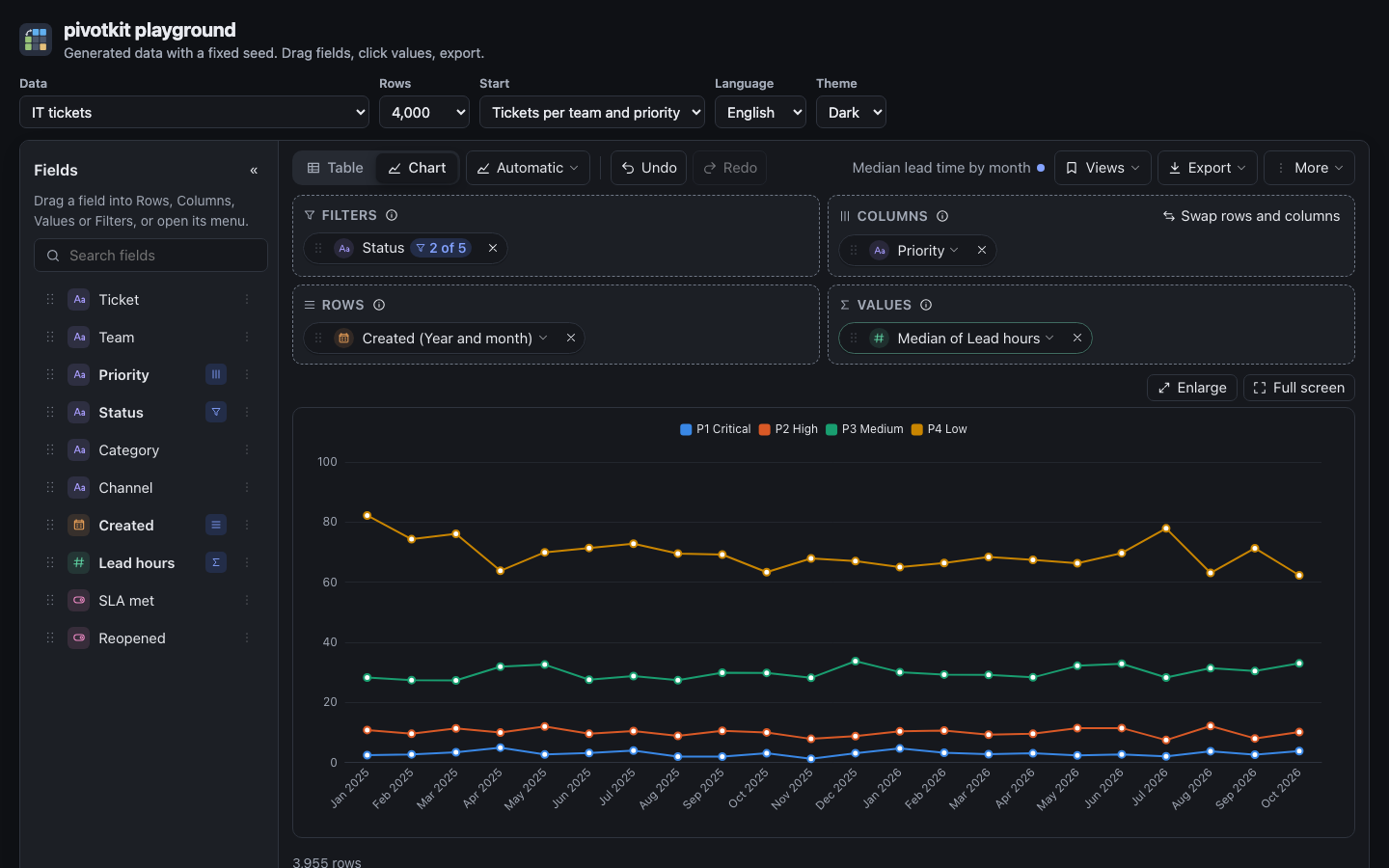
- A click on the name opens Views, where Save is the first entry. On a phone the name stands at the end of the toolbar and is shortened with "…"; pointing at it shows the whole name.
- New and Reset take the name away: the report no longer shows that view, so a Save cannot write an empty report or the start view over it. Undo brings the view back and its name with it; Redo takes both away again.
- When the application switches to other data, the report keeps your fields but not the name.
- After a reload of the page the report can come back with your view, but without its name: open the saved view again from Views to save changes into it.
The Views menu
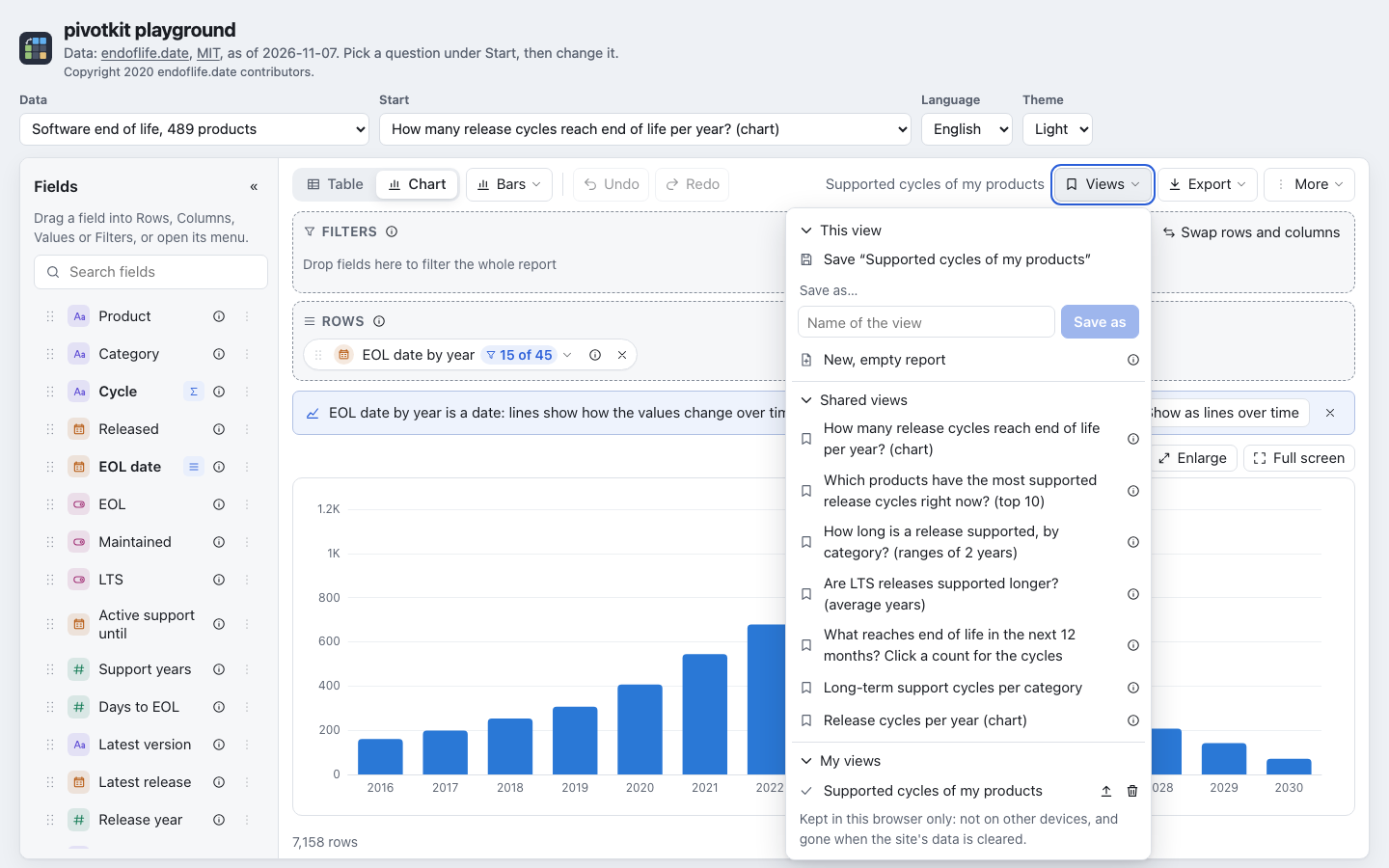
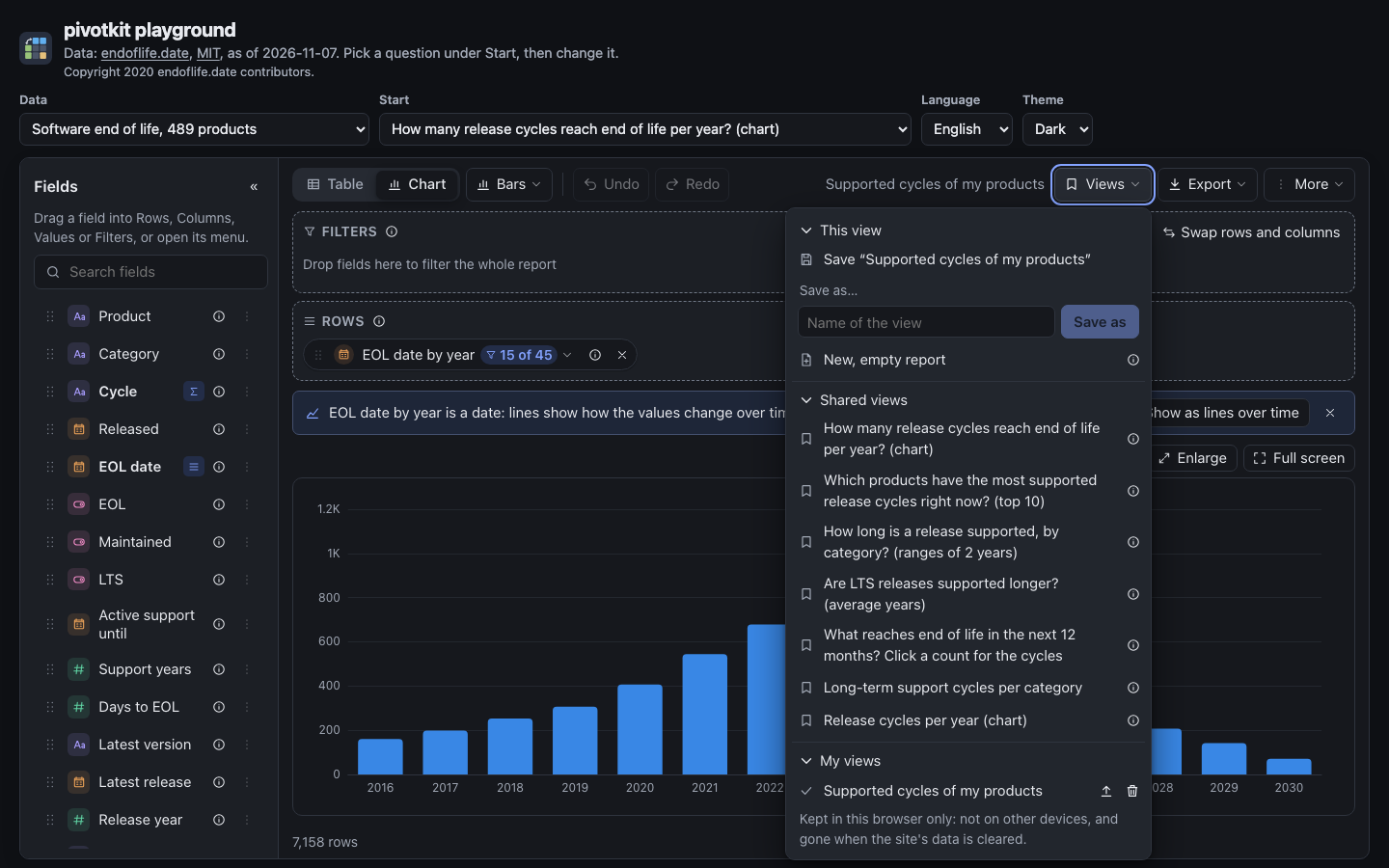
Views in the toolbar starts with This view (save and start over), then lists the saved reports in two groups, then Share (folded at first: a click on its title opens it, and the report remembers that). Each entry loads its view with one click; the first three are also offered in the empty report. The view you loaded has a check mark in its group.
| Group | What |
|---|---|
| This view | Save “…” for the view you loaded, the name field (Save current view, or Save as… once a view is loaded) and New, empty report. |
| Shared views | The same for everyone who uses the report: the views the application provides. Where someone can change them, an i next to one says who (by default "Only admins can change shared views."). |
| My views | Your own. Save current view saves the report under a name; your views can be deleted, and published for everyone where the application allows it. |
A group without entries is not shown; My views shows while you can save.
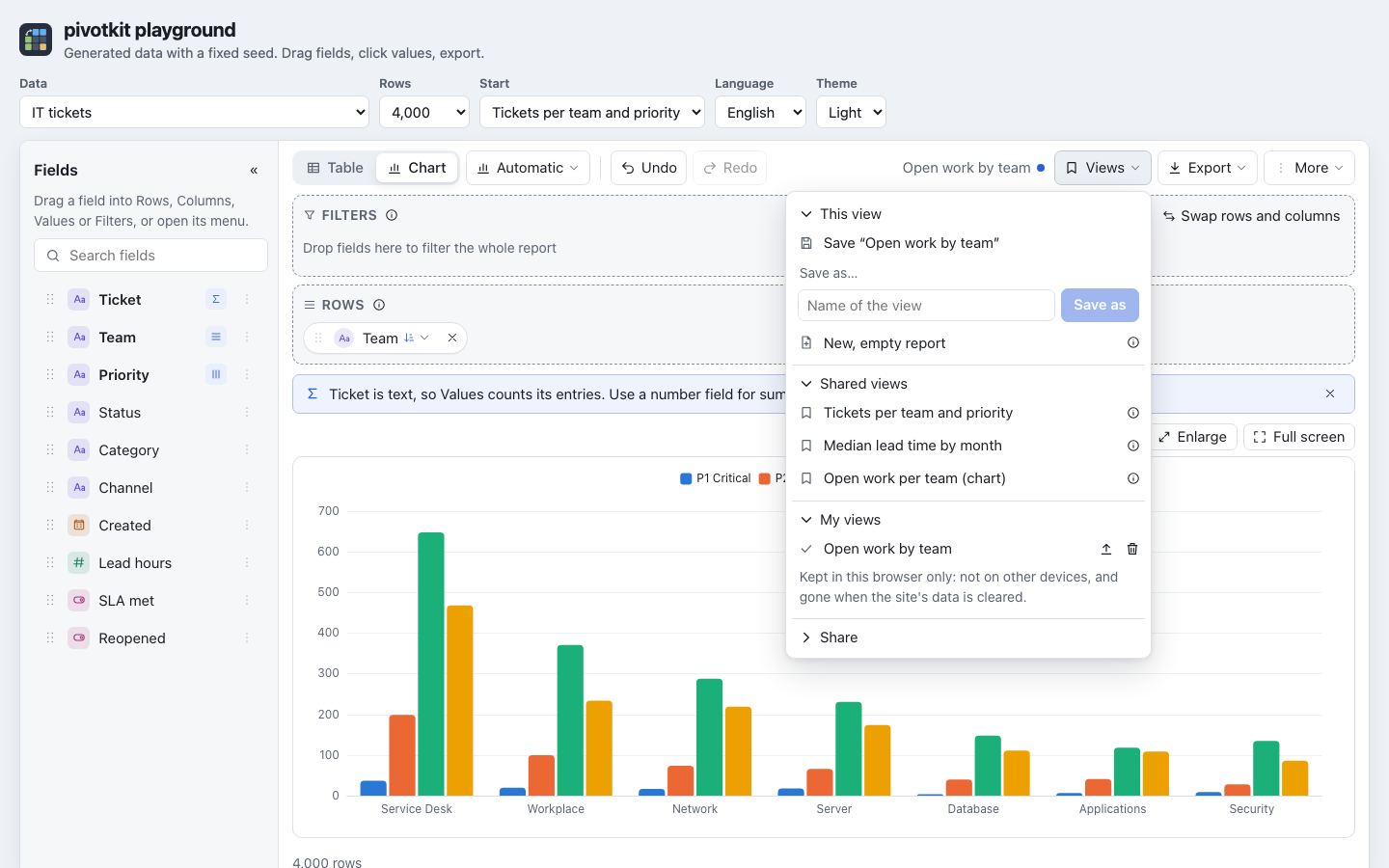
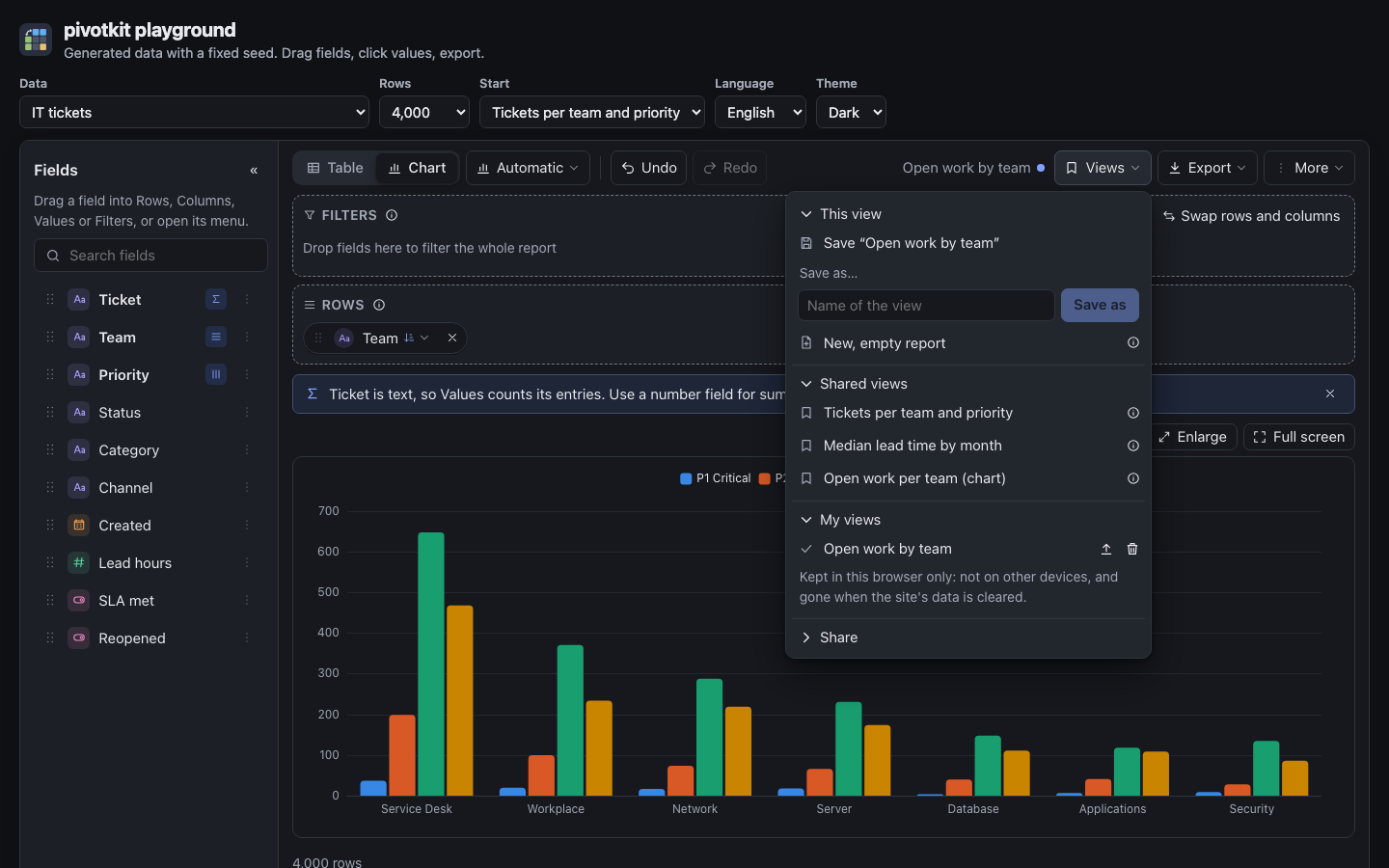
Save your changes
You loaded one of your views and changed it:
- Open Views (or click the view's name in the toolbar).
- Click Save “…”.
The view is saved under its name, in its place in My views, and the menu closes: "View “…” saved". Quick enough to keep a report for later before you leave.
Save is greyed out, with the reason under it:
| Reason | What to do |
|---|---|
| "Shared view: you cannot change it. Use Save as." | A shared view only someone who may publish views can change. Save it as your own under a name. |
| "Not saved yet. Use Save as." | The view came from a file or a link: it is not among the saved views. |
| "Add a field first." | The report is empty; an empty report is never saved over a view. |
Where you may publish views, Save on a shared view asks first, in place: "Replace the shared view “…” for everyone?" - Replace saves it for everyone, Cancel changes nothing.
Save under a name
- Open Views.
- Type a name under Save current view (Save as… once a view is loaded), up to 120 characters.
- Press Save (Save as) or Enter. The button is greyed out while the name is empty.
When one of your views already has that name, the report asks in place of the field: "“…” exists. Replace it?" Replace writes over that view; Cancel, which has the focus so that Enter does not replace anything, brings the field back with the name in it, so you can change it. A shared view of the same name stays as it is: Save as saves your own.
Every save closes the menu, the same for Save “…”, Save current view and Save as, and the focus goes back to Views (or More); a note says "View “…” saved". The name field has an ×; Escape in it empties it first, then closes the menu. Every name is shown as plain text.
Start over with an empty report
New, empty report in Views (under This view, with Save and Save as) empties the report: no fields, the three first steps and up to three saved views to start from. "New, empty report" appears with Undo, which brings the report back. Saved views are not changed. The i next to the entry in Views says the same.
Delete or publish one of your views
- The delete button next to one of your views asks in place before the view goes.
- Where the application allows it, the arrow next to one of your views publishes it as a shared view, for everyone, after a confirmation in place.
- After a delete, a publish or Cancel the focus goes back to the entry in that place.
Views kept in this browser
When the report keeps your views in the browser, the menu says so: they are only in this browser on this device, and gone when the site's data is cleared. Before the first one is saved, My views is one line: "None yet. Saved views stay in this browser only." At most 100 views are kept. When the views were changed in another tab since you opened the menu, a delete here deletes nothing and says so: "The view could not be deleted: the views were changed in another tab; open the menu again".
Share a view
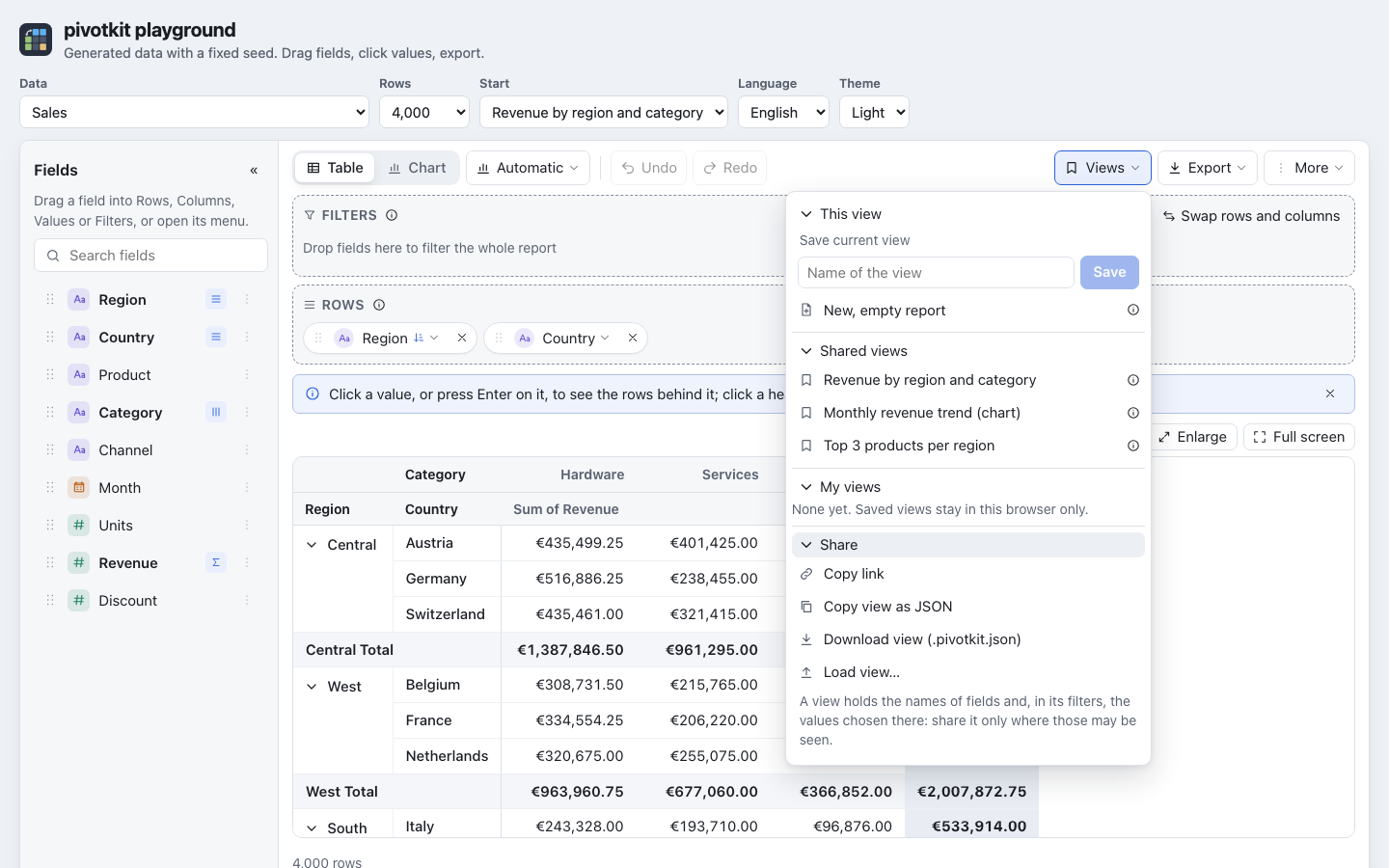
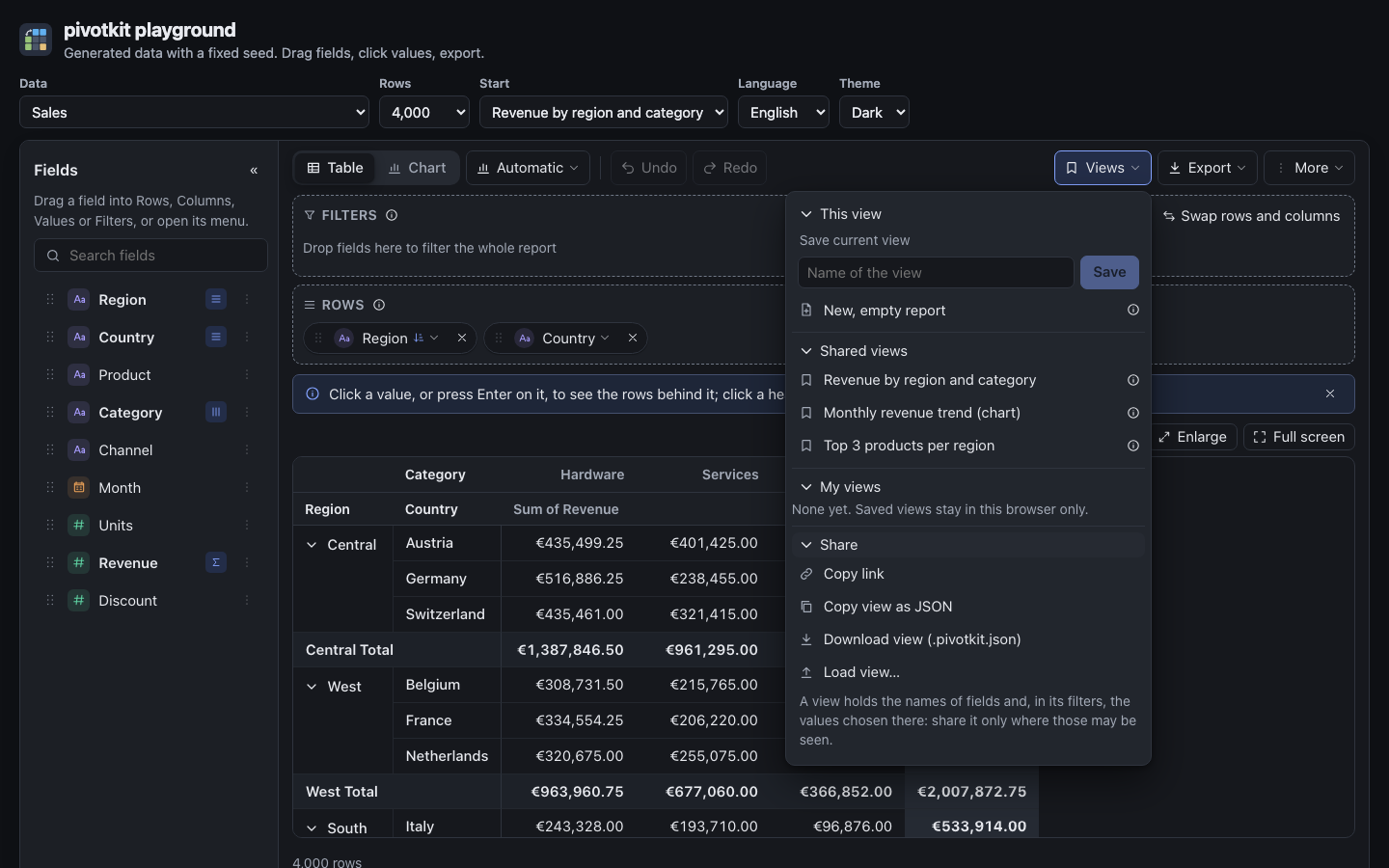
The Share section of the Views menu (folded until you open it once):
| Entry | Gives |
|---|---|
| Copy link | An address with the view in it, when the application allows links. Whoever opens it sees the same report on the same data; Reset still goes to the application's start view. A view too large for a link says so: share it as a file. |
| Copy view as JSON | The view file as text, for a message or a ticket. |
| Download view (.pivotkit.json) | The view as a file, named <name>.pivotkit.json after the view's name (the saved view or file it came from), else the data's name, else the application's file name (pivot.pivotkit.json without one). |
| Load view… | Opens a view from pasted text, a link or a file (below). |
Under the entries a line says what a shared view gives away: "A view holds the names of fields and, in its filters, the values chosen there: share it only where those may be seen." Where a page does not allow the clipboard, the report says so and points to Download view.
Load a view
- Views, Load view….
- Paste a view file, a view's JSON or a link and press Load (greyed out while the box is empty), or press Choose file…, which loads the file at once.
Nothing changes until it is loaded; the load is one step Undo takes back. The box has an × that empties it.
- A text of more than 1,000,000 characters, or a file of more than 1,000,000 bytes, is refused before it is read: "This is too large for a view."
- A text that is no view says why: "This is neither a view in JSON nor a pivotkit link."
- A view from a newer version of pivotkit is refused: "This view comes from a newer version of pivotkit and cannot be read here. Update pivotkit to open it."
Before a view for other data is loaded
When the view was made for other data, or uses fields this data does not have or has with another type, the report asks before anything changes: "This view may not fit this data", with what does not fit ("It was made for “Weather”.", "Fields this data does not have: “City”.", "Fields of another type here: “Units”."). Names from the file are shown as text only. The question takes the focus when it appears.
| Choice | Does |
|---|---|
| Load anyway | Loads it; what does not fit is left out. |
| Cancel | Back to the form. |
| Switch to “Weather” and load | Where the application can show that data: shows the other data with the view on it. That starts the report on that data anew (a new history: Undo begins there); the question says so under its button. |
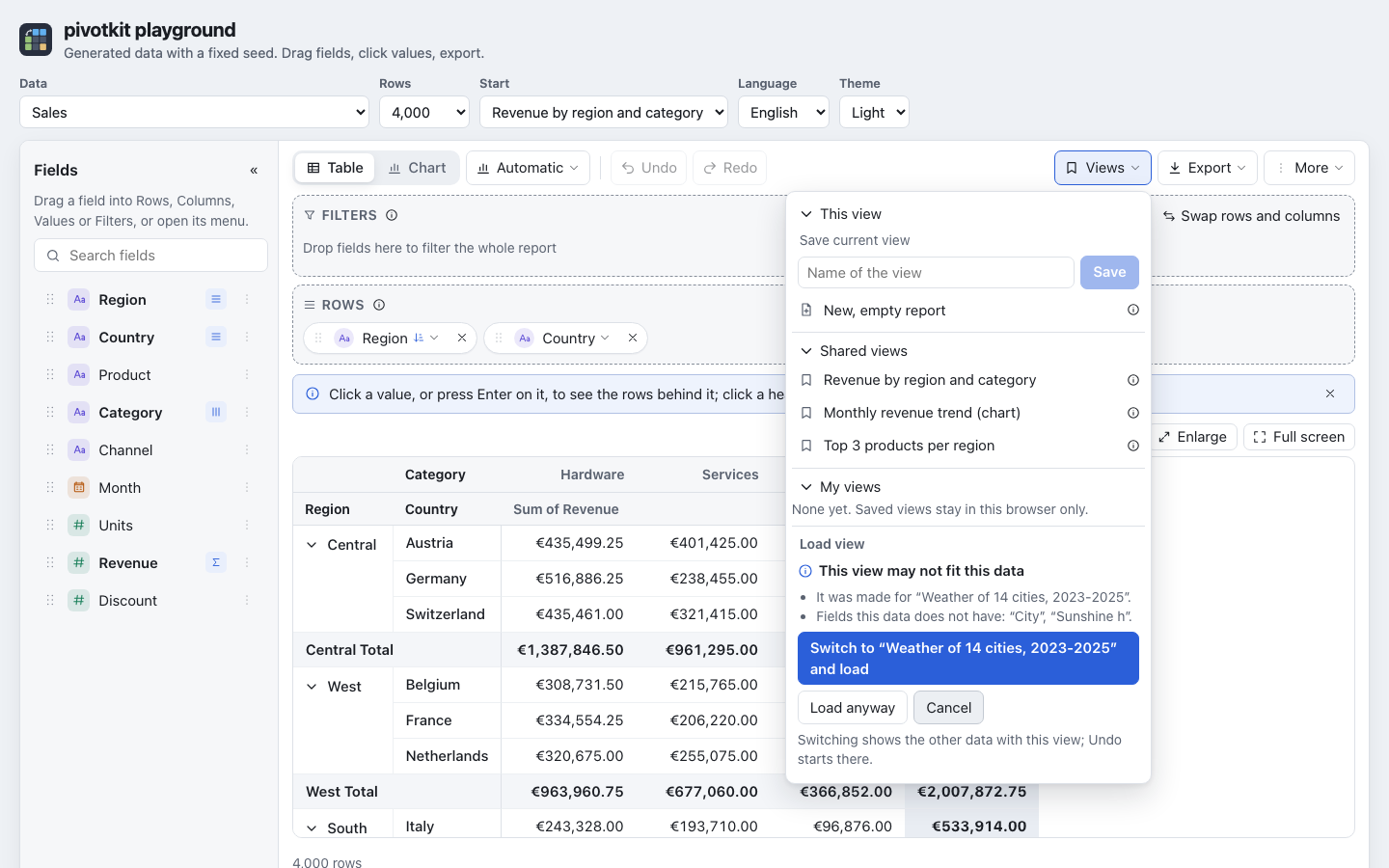
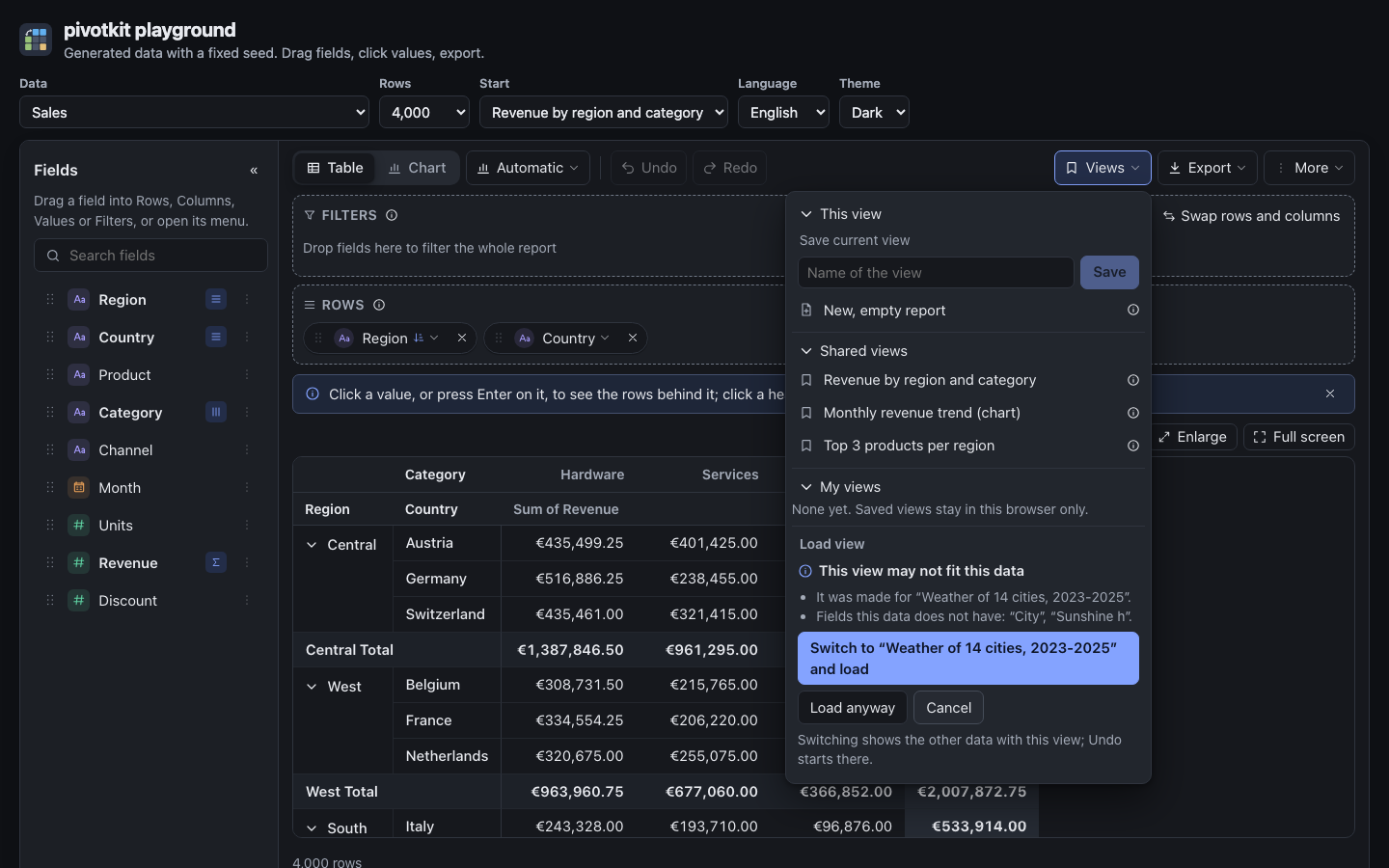
A link does the same: one in the page's address made for other data, or using fields this data does not have, opens only after the same question, shown above the result ("The link's view may not fit this data"): Load anyway, Cancel (the report keeps its start view; the same link given again asks again) and Switch to … and load where the application allows. A link at the page's load does not take the focus; one opened later in the tab is a step Undo takes back once loaded.
After the load
- A note says it was loaded, with Undo, and goes after a few seconds: "View loaded", "Opened the view from the link", or "View loaded; some parts did not fit this data" (a warning, not an error).
- What was left out stays above the result as a warning, "2 parts of this view could not be used", open with one line per part in plain words, until you dismiss it with its × or load another view (details). A saved view from Views that the data cannot fully use (a field that is gone) shows the same warning, as does one that has more fields in a zone than the limits allow.
- Real errors (a damaged link, an application that could not save) stay in the status line until you close them.
For developers
Where views are kept (templates, onSaveTemplate, onDeleteTemplate, onPublishTemplate with
canPublish, templateStore="browser") is in Templates and shared views;
Save and Save as call onSaveTemplate or onPublishTemplate with a name that exists, which your
application replaces (the contract);
links, source, sources, onSourceSwitch and keeping the view per tab (persistView) in
Sharing and keeping a view; the file itself in the
view file format.